Approval and reassessment
A risk goes through four statuses: Draft, Under review, Approved and Retired. Only once a risk is approved does it count in the register, on the dashboard and in the alerts.
You find everything for this on the Complete step of an assessment.
From draft to approved
Section titled “From draft to approved”- Whoever fills in the assessment clicks Submit for review. The risk moves to Under review.
- A risk manager or organisation administrator checks it and clicks Approve. RiskCompass asks for confirmation and explains what it means: from now on the risk counts and the period until reassessment starts.
A risk manager can also approve a draft directly, without the review step.
If the Approve button is missing and you see This assessment is still incomplete., choose at least one level on the Impact step. Without impact there is no risk score.
On approval, RiskCompass records the date, the version and who approved it.
Changes after approval
Section titled “Changes after approval”If a risk manager edits an approved risk, it returns to Draft. It then has to be approved again. This is also stated at the top of the assessment, so it never comes as a surprise.
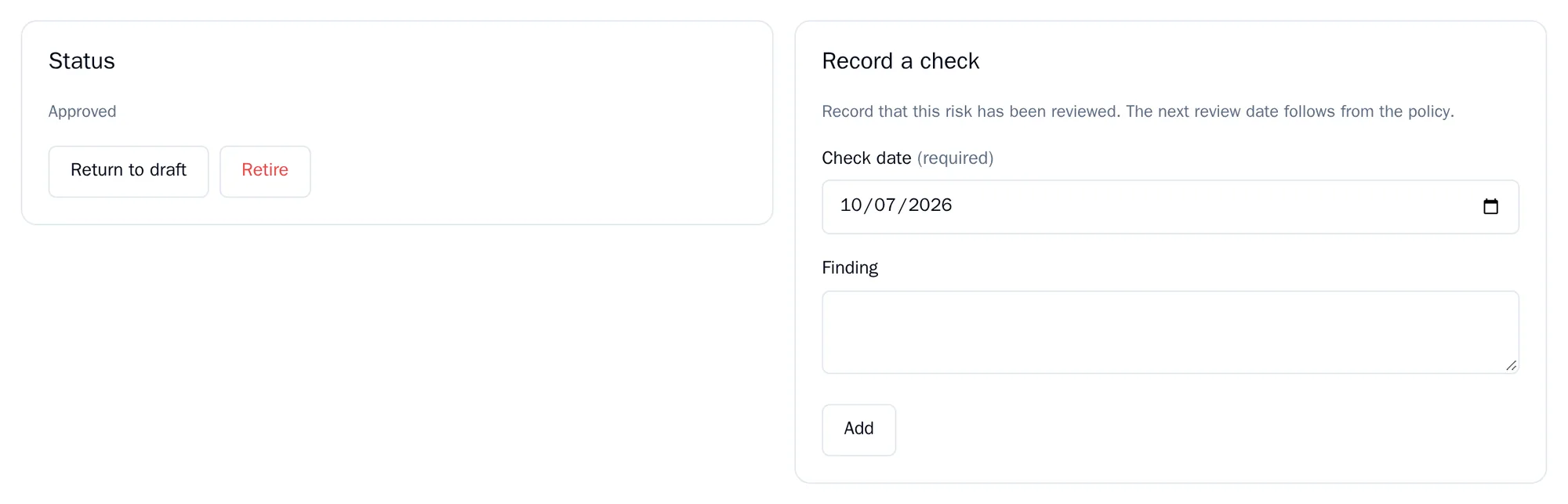
With Return to draft you do this deliberately. The risk then disappears from the register and the alerts until it is approved again. The earlier approval stays in the audit log.
Recording a check
Section titled “Recording a check”You need to look at an approved risk again regularly. How often is set in your policy per level: by default every year for a low risk and every 30 days for a critical risk.
- Discuss the risk, for example in your regular meeting.
- Under Record a check, fill in the Check date (today by default) and optionally a Finding.
- Click Add.
RiskCompass calculates the next check date itself: the last check plus the period for the current level. Under Check history you see all earlier checks. If the date has passed, the alert Review overdue appears.
Any assessor, risk manager or organisation administrator can record a check.
Retiring a risk
Section titled “Retiring a risk”If a risk no longer applies, for example because part of the business has been sold, retire it.
- Click Retire.
- Fill in Why does this risk lapse?. This is required.
- Confirm.
The risk disappears from the register and no longer produces alerts. It remains available in reports and in the audit log. In the register you can see it again with Include lapsed risks. Use Reopen to return it to draft.
Deleting a risk
Section titled “Deleting a risk”You can only delete a risk permanently if it has never been approved, with Delete permanently. RiskCompass first shows what will disappear. The audit log stays.
If the risk was ever approved, it cannot be deleted. Retire it instead. That keeps the history of your risk management complete.
Approving, returning to draft, retiring, reopening and deleting can be done by a risk manager or organisation administrator.