Assessing a risk
An assessment is the evaluation of one risk. You describe the risk, assess how bad it would be (impact) and how likely it is (likelihood). From that, RiskCompass calculates the risk score and the level.
You do this as an assessor, risk manager or organisation administrator.
Creating an assessment
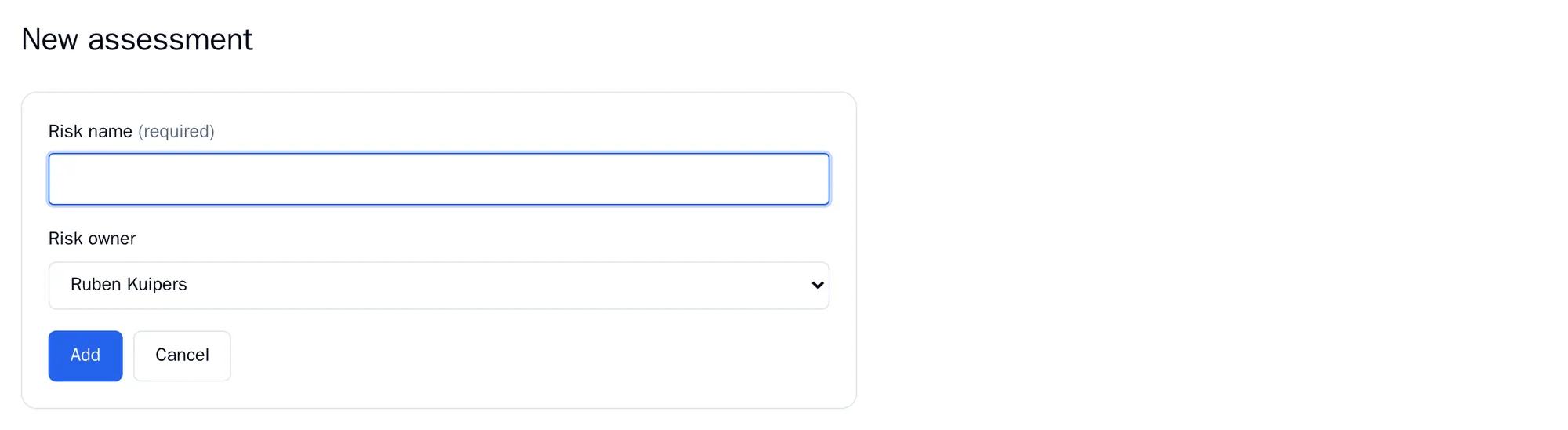
Section titled “Creating an assessment”- Go to Assessments and click New assessment. This button is also on the dashboard and in the register.
- Fill in the Risk name. Describe what can go wrong and why, for example “Ransomware via unmanaged service laptops used by engineers”.
- Choose the Risk owner: the person responsible for this risk. By default that is you.
- Click Add.
RiskCompass gives the risk a reference, such as RA-2026-0025. It starts as Draft, with classification Internal and version 0.1.
The steps
Section titled “The steps”At the top of each assessment you see the scores and the steps. A tick means the step has produced something. Use Save · Next to go to the next step and Previous to go back. Under All you see the whole assessment on one page.
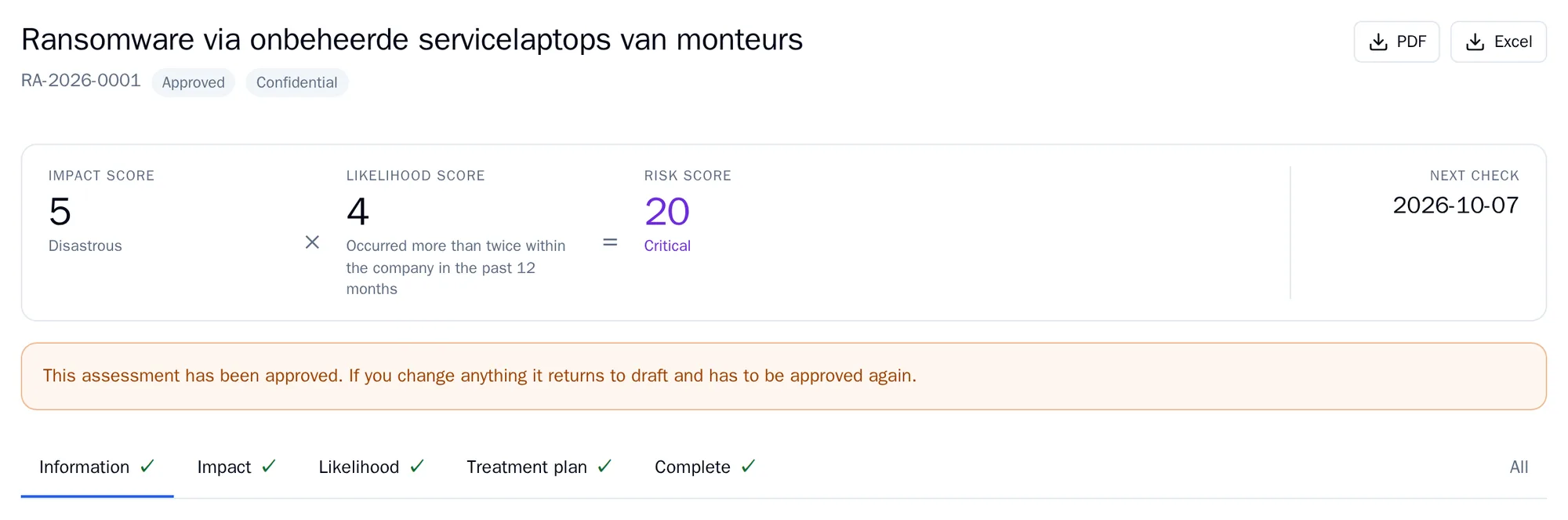
The steps are Information, Impact, Likelihood, Treatment plan and Complete. If your organisation has switched on FMEA or the bowtie, an Analysis step is added. With residual risk switched on, a Residual risk step is added. See Method and registers.
Information
Section titled “Information”- Risk name and Risk owner.
- Classification: Public, Internal, Confidential or Secret. This appears on the exports.
- Version: your own version number, for example 1.0. RiskCompass does not increase it automatically.
- In scope and Out of scope: what does and does not belong to this risk, one item per line.
- KPIs: up to six measurement points that show whether this risk stays under control. A measure can refer to them later.
- Acceptance: whether the risk has been accepted, by whom, on what date and possibly until when, and who approved the treatment plan.
If assets, threat actors or the MAPGOOD checklist are switched on, you link them to the risk here.
Impact
Section titled “Impact”For each category, choose the level that fits best. Each level has a description from your framework, so everyone means the same thing by “major”.
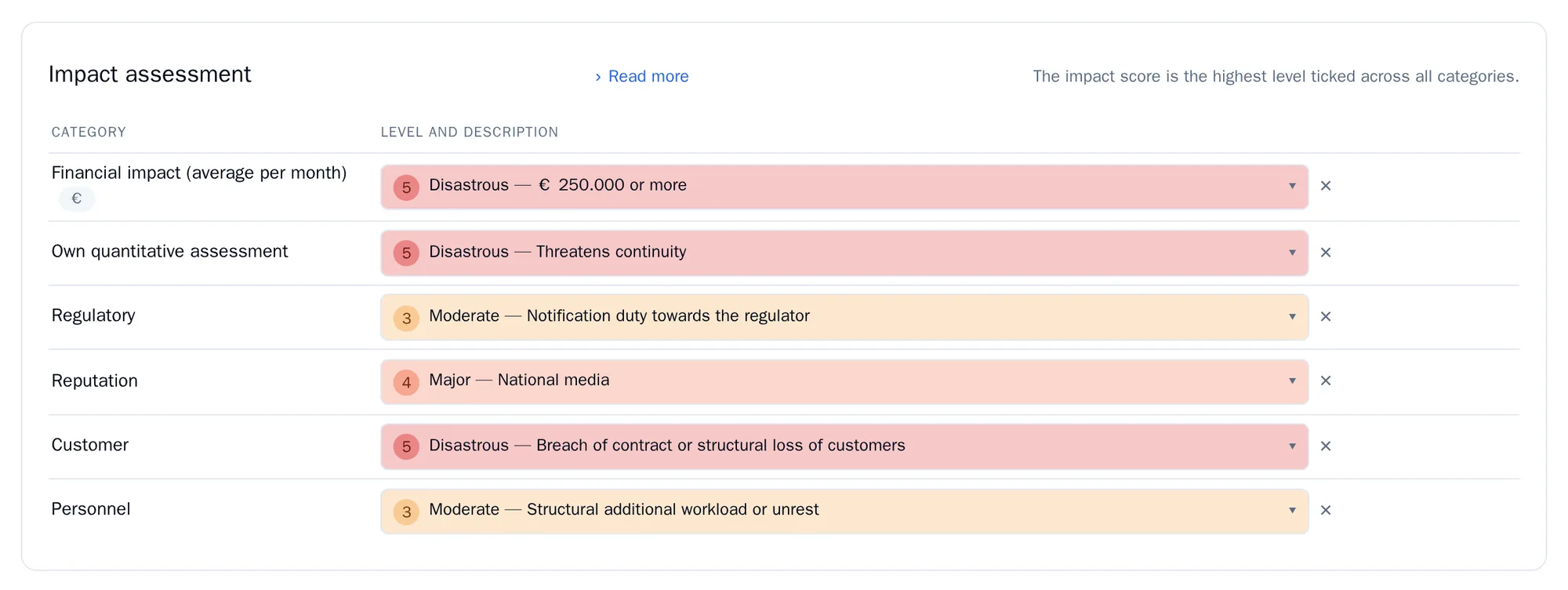
- The impact score is the highest level chosen, never the average. One disastrous outcome is enough.
- If you choose nothing, there is no score.
- To assess availability, integrity and confidentiality separately, choose With CIA breakdown under Entry mode and click Apply input mode. You then choose three levels per category. What you filled in under the other entry mode is kept but does not count.
- Under Impact rationale, explain why this is the right assessment.
Likelihood
Section titled “Likelihood”Choose the highest statement on the likelihood scale that applies. The statements below it then apply as well: anything that happened more than twice in your own company has also happened in the industry.
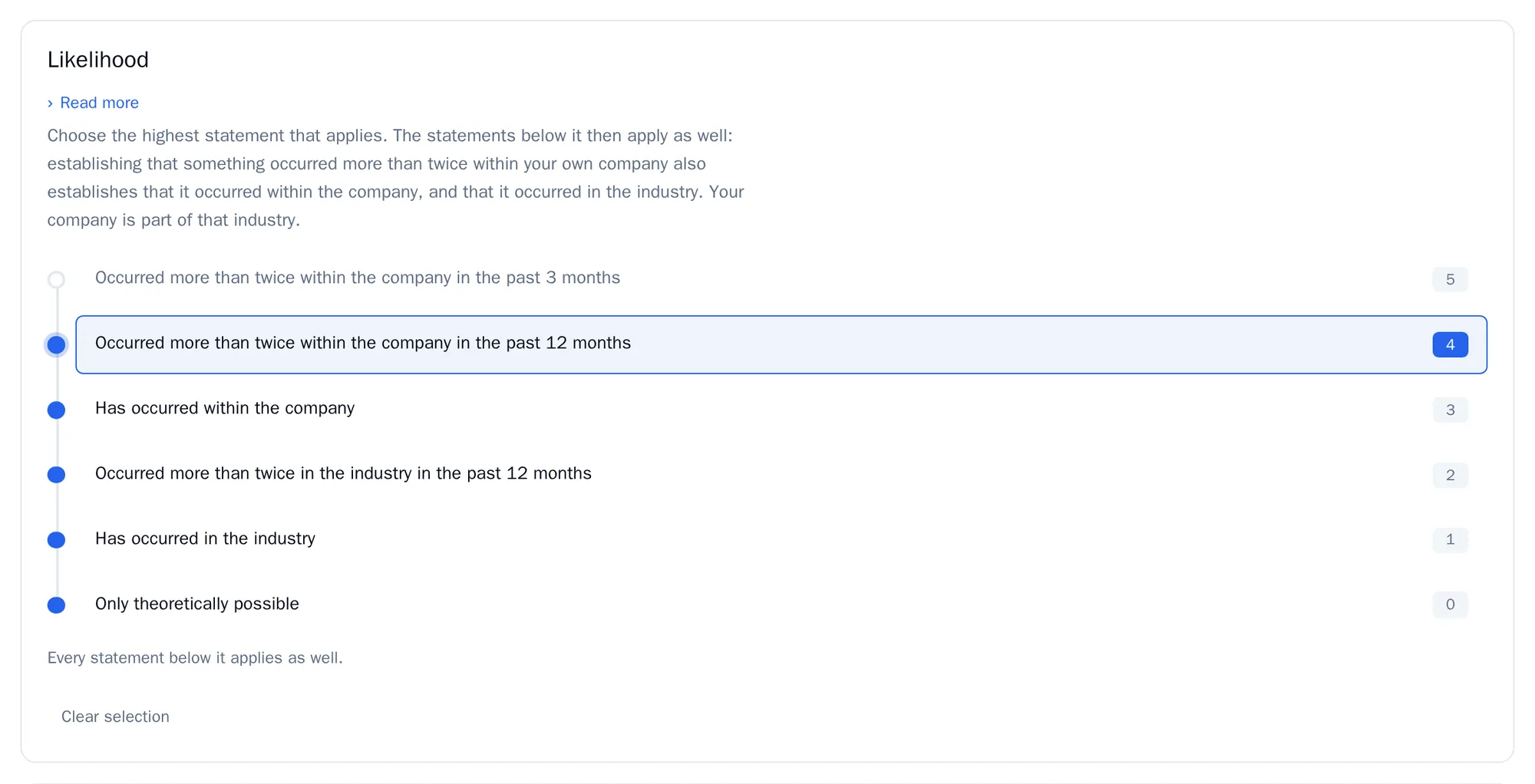
The likelihood score runs from 0 to 5. Use Clear selection to undo your choice. Under Likelihood rationale, explain what your estimate is based on.
The risk score
Section titled “The risk score”Risk score = impact × likelihood. An impact of 5 and a likelihood of 4 gives 20. Your organisation’s risk appetite determines the level. By default:
| Risk score | Level |
|---|---|
| 1 to 4 (and 0) | Low |
| 5 to 8 | Medium |
| 9 to 15 | High |
| 16 to 25 | Critical |
Analysis
Section titled “Analysis”This step only appears if your organisation uses FMEA or the bowtie.
- FMEA: describe the Failure mode, the Effect, the Cause and the Current controls. At higher gradations you also estimate the Detectability (1 is almost certainly noticed, 5 is only visible once damage is done). RiskCompass then calculates a priority number: impact × likelihood × detectability.
- Bowtie: record the causes and consequences of the event with Add cause and Add consequence. At higher gradations you add a preventive barrier per cause and a mitigating barrier per consequence.
Click Save. Then choose the next step yourself.
Who can do what
Section titled “Who can do what”- An Assessor only edits their own assessments (as owner or creator), and only while they are drafts.
- A Risk manager and an Organisation administrator edit all assessments. If they edit an approved assessment, it returns to draft and has to be approved again. This is also stated at the top of the assessment.
- A Viewer can only view.
Exporting
Section titled “Exporting”At the top right of an assessment, click PDF or Excel. The Excel file has five sheets. Every export is recorded in the audit log.
Next: Treatment plan and measures.