Awareness quick start
This quick start is for the administrator who sets up Awareness for the organisation. After these seven steps your employees are in, Awareness knows where everyone stands on each topic, and it assigns training by itself. Each step links to the page that covers that part in full.
-
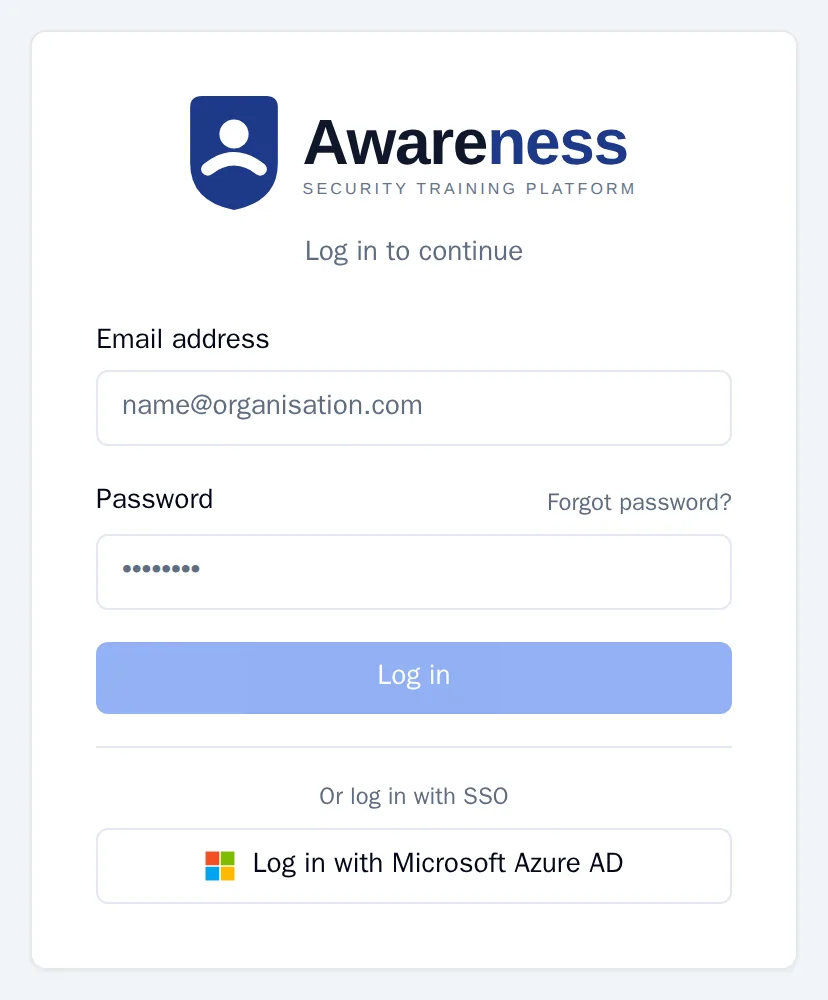
Log in and set up your second factor. Open the web address of your environment and log in with the administrator account you received at the start. The first time you log in, Awareness asks for a second factor: an authenticator app or a passkey. You then arrive at Home. More in Logging in and second factor.
-
Create your departments. Go to People, open Organisation and click Add department. Give the department a name and click Create. Do this first: when importing, Awareness only links employees to departments that already exist. More in Employees and departments.
-
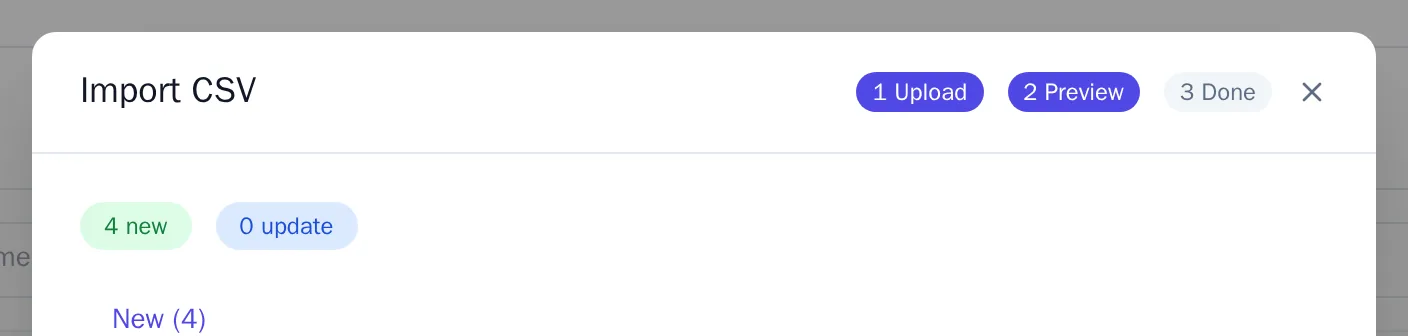
Import your employees. Under People, click Import, choose your CSV file and click Analyse. Check the preview and click Import … valid rows. Every new employee receives an invitation by email.
-
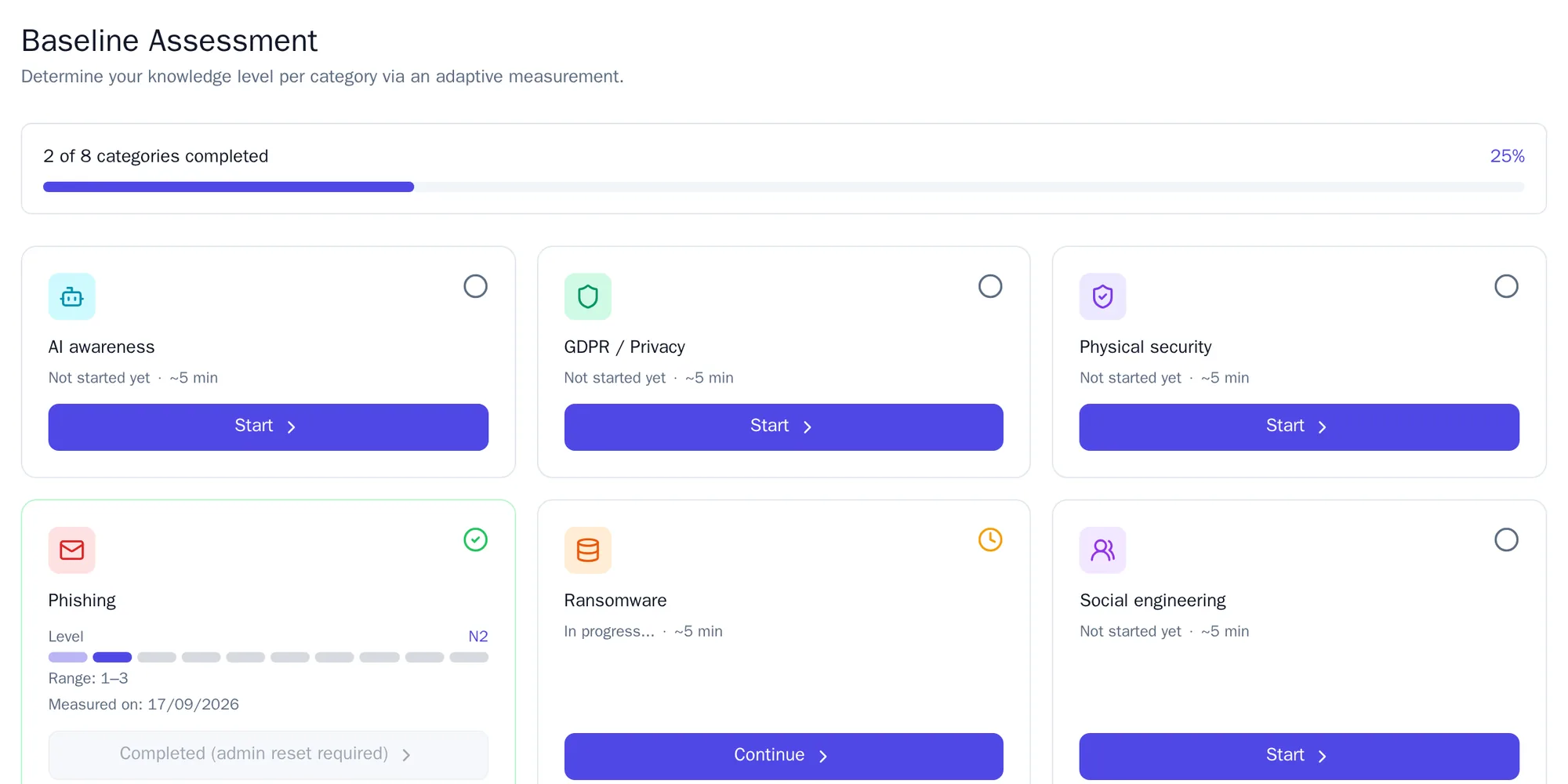
Have everyone take the baseline assessment. Employees find the baseline assessment on Home and under Practice. For each topic they answer a short series of questions that adapts to their level. The result decides which training they receive. More in The baseline assessment.
-
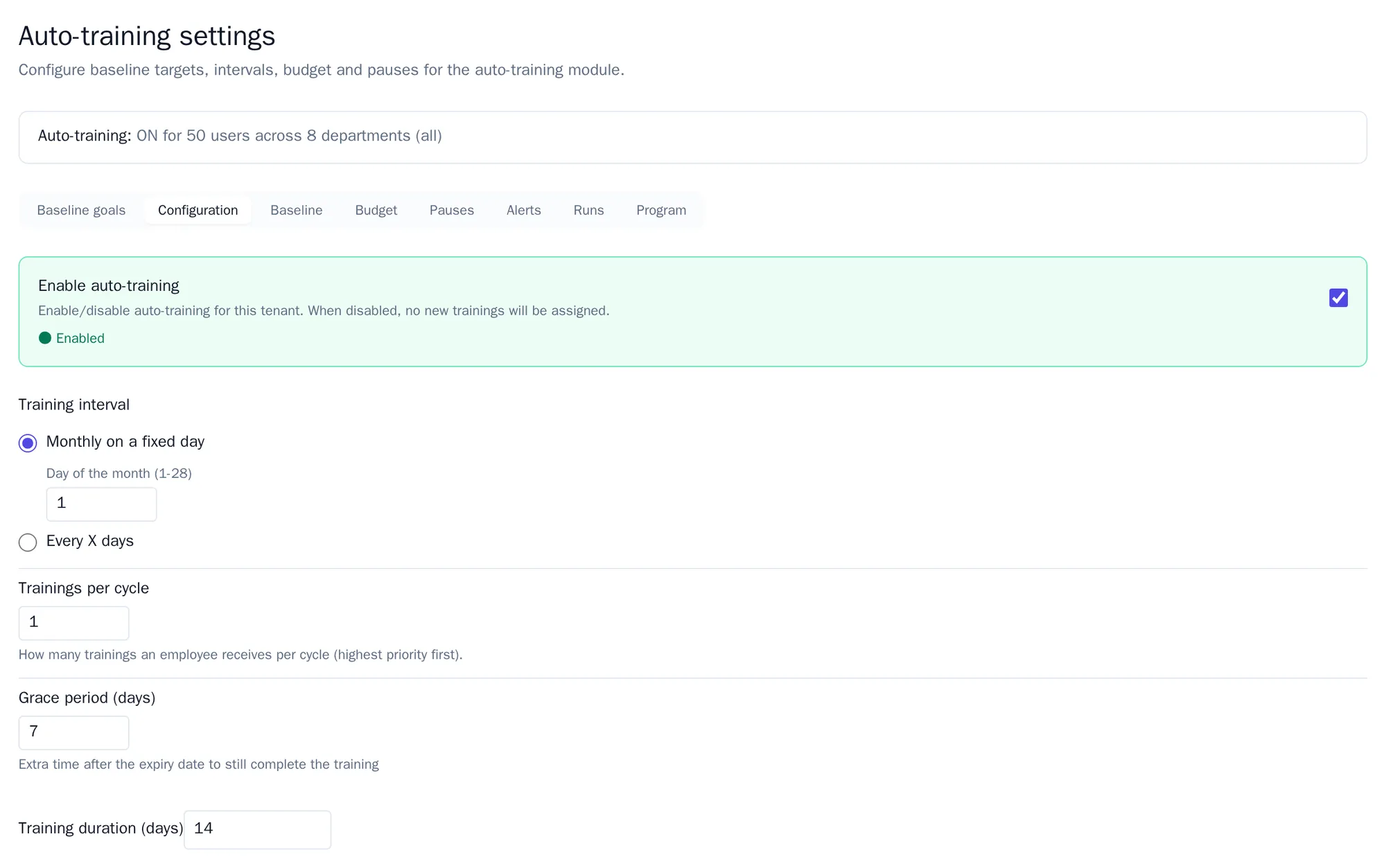
Switch on automatic training. Go to Auto-training, tab Configuration, and switch on Enable auto-training. Choose how often a cycle runs and how many trainings someone receives per cycle, and click Save. More in Automatic training.
-
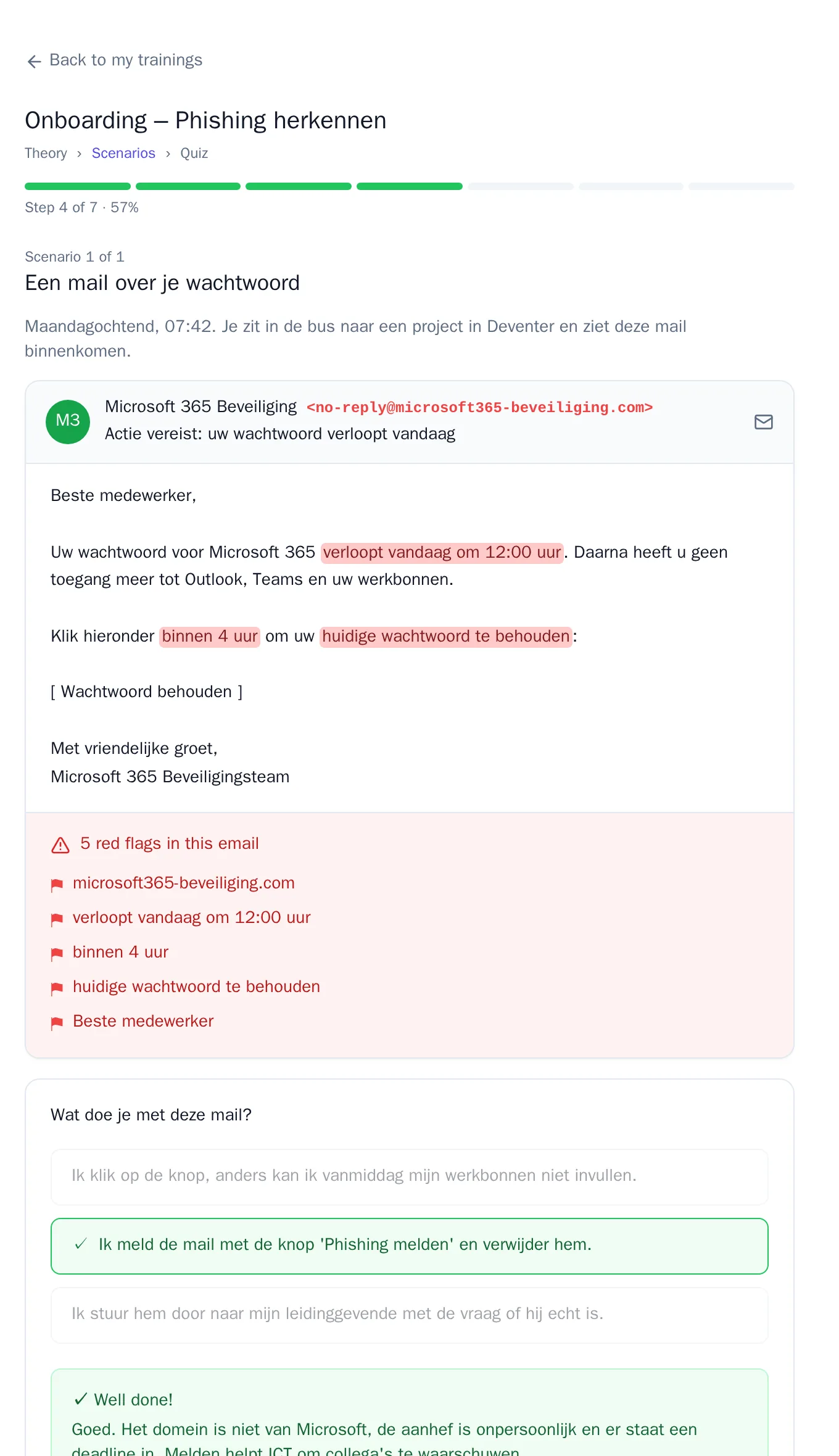
Your employees train. They see their training under My trainings. A training consists of an explanation, scenarios and a short quiz. When they finish, they get a score and points. More in Learning and practice.
-
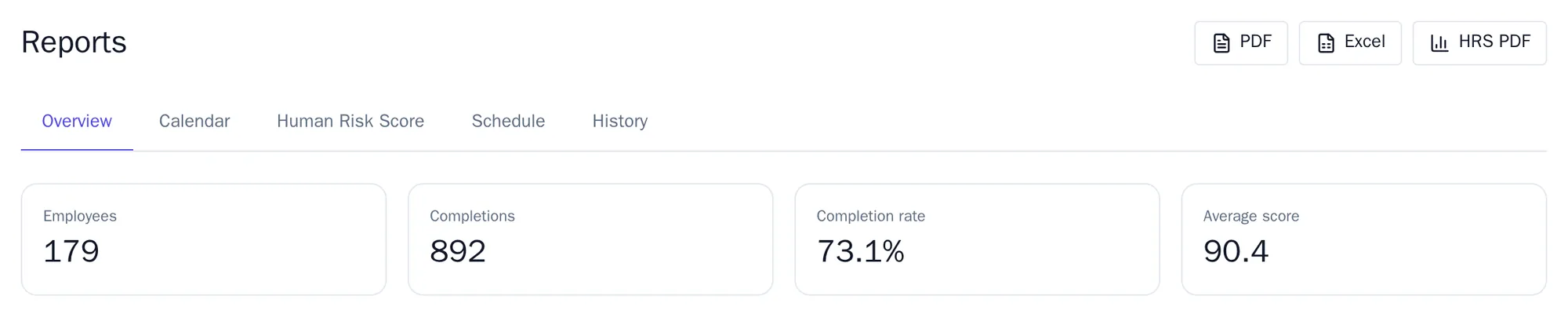
Follow progress. Go to Insights and choose Reports. There you see how many employees there are, how many trainings have been completed and the average score. Use PDF or Excel to download a report. More in Progress and reports.

- Want to give everyone the same topic at once, such as a theme of the month? Create a campaign.
- Want to know where the risk lies? Look at the risk score per department.
- Come across a word you don’t know? Look it up in the glossary.