Logging in and your account
Activating your account
Section titled “Activating your account”Your organisation administrator creates your account and gives you an activation link. RiskCompass does not send any email itself, so you get the link from your administrator, for example in a chat message or an email. The link works once and is valid for 7 days.
- Open the link. You arrive at Activate account.
- Choose a Password of at least 12 characters and enter it again under Repeat password.
- Click Activate account. You arrive at the login screen.
If RiskCompass says This activation link is invalid or has expired., the link has already been used or is older than 7 days. Ask your administrator for a new one.
Logging in
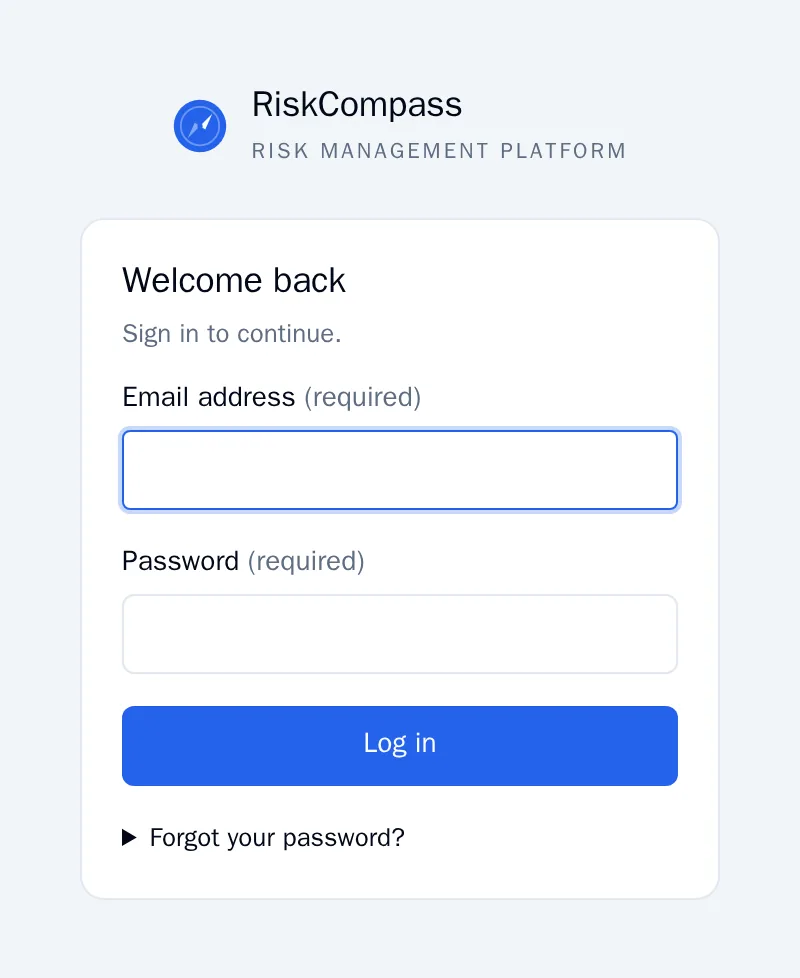
Section titled “Logging in”- Enter your Email address and Password.
- Click Log in. You arrive at the dashboard.
You stay logged in for 8 hours. After that, RiskCompass asks you to log in again.
| What you see | What is going on | What you do |
|---|---|---|
| That email address or password is not correct. | The address or password is wrong, or your account has not been activated yet. | Check both. If it still fails, ask for a new activation link. |
| This account is temporarily locked. | After 5 failed attempts RiskCompass locks your account for 15 minutes. Even the correct password does not work then. | Wait the number of minutes shown in the message. |
| This account has been deactivated. | Your administrator has switched off your account. | Ask your administrator to activate it again. |
| Your form has expired. Please try again. | The page was open for too long. | Reload the page and log in again. |
Forgotten password
Section titled “Forgotten password”Below the login form, click Forgot your password?. RiskCompass explains what to do: ask your organisation’s administrator for a new activation link. With that link you choose a new password yourself. Your old password keeps working until you use the new link.
Your account
Section titled “Your account”Click your name at the top right. You arrive at My account.
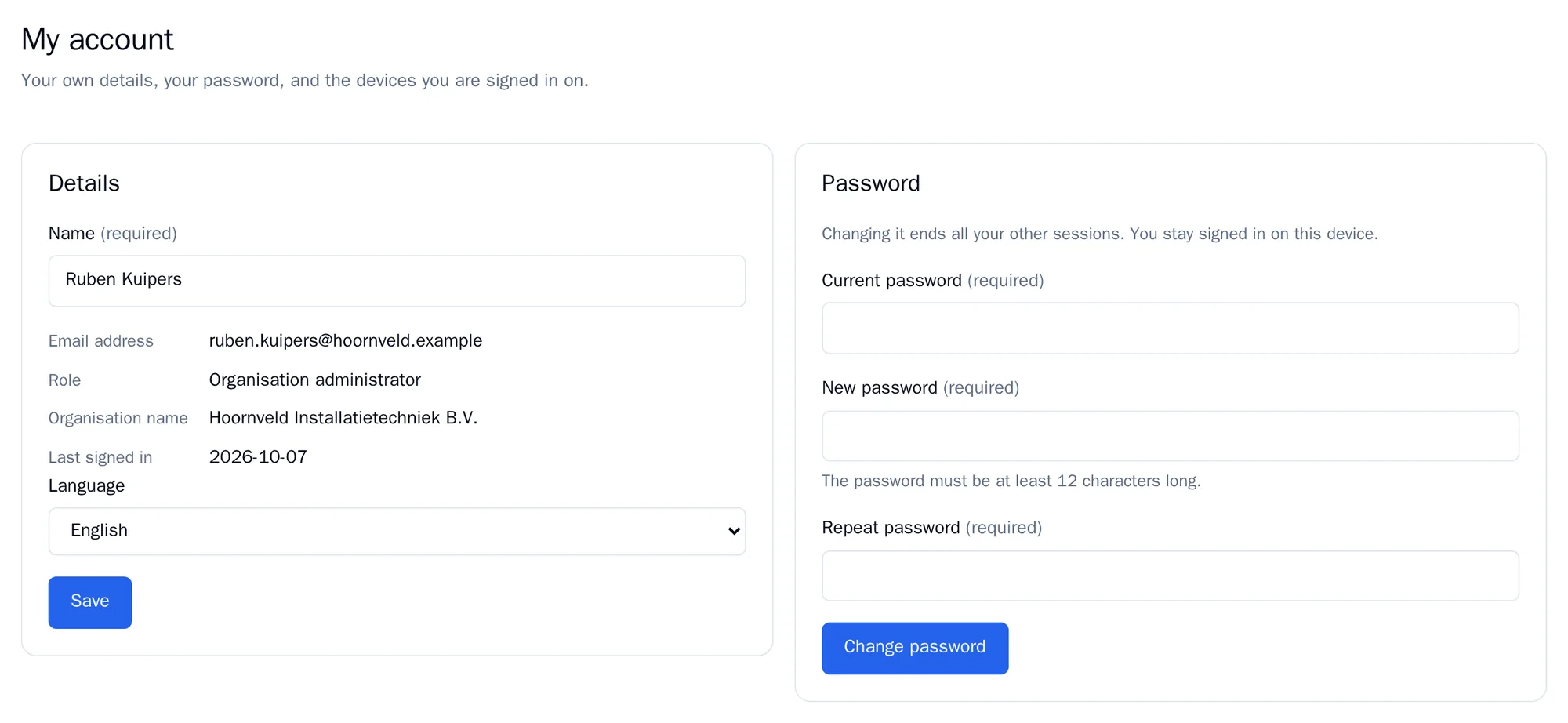
- Details: change your Name and choose your Language, Dutch or English. Click Save. Only your administrator can change your email address.
- Password: enter your Current password and the new one twice, then click Change password. All your other sessions are then ended. You stay logged in on this device.
- Where you are signed in: the devices you are currently logged in on, with date, IP address and browser. If you see something you don’t recognise, click Sign out everywhere except here and change your password.
Language
Section titled “Language”Click EN at the top right to switch to English, or NL to switch back to Dutch. You stay on the same page and RiskCompass remembers your choice. Reports and exports come out in the language you are using at that moment.