Campaigns
Automatic training tailors what is offered to each person. If you want to give everyone the same thing instead, for example a theme of the month or a training for new colleagues, you create a campaign. A campaign has a target group, a duration and one or more items.
You manage campaigns as an administrator, ISO or manager, under Campaigns.
The overview
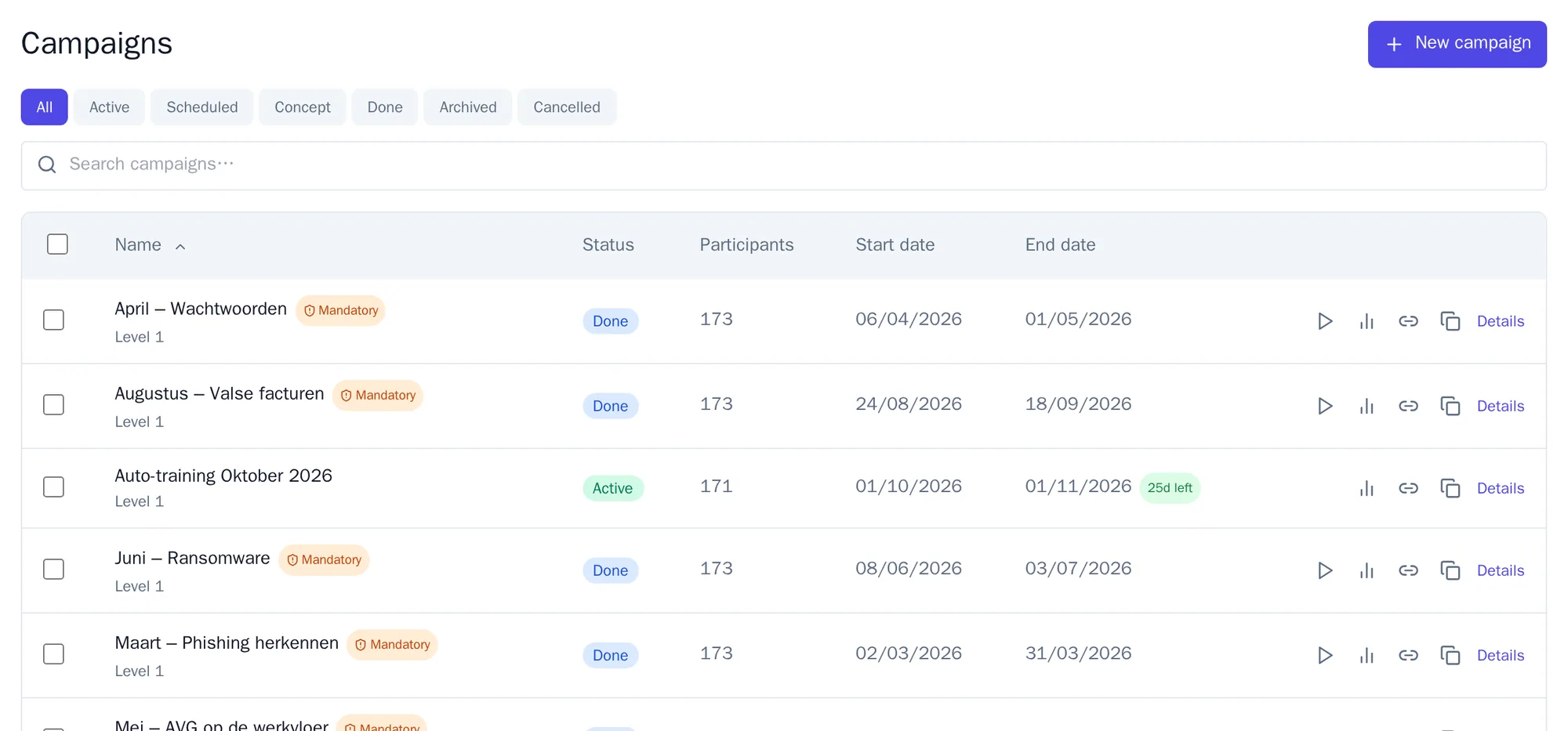
Section titled “The overview”Campaigns lists all campaigns with the number of participants, the start date and the end date. Use the buttons at the top to filter by status: Active, Scheduled, Concept, Done, Archived or Cancelled. Mandatory campaigns have the label Mandatory. For running campaigns you see how many days are left.
Creating a campaign
Section titled “Creating a campaign”- Click New campaign. The wizard has five steps.
- Basics: give the campaign a name. The employee sees this name.
- Items: add what goes into it: a training, a lesson, a phishing exercise, a red-flag exercise, an incident exercise or a defend challenge. Add at least one item.
- Planning: optionally choose a start and end date.
- Policy and lesson: choose whether the campaign is mandatory, from what score someone passes (77 percent by default), after how many days someone may try again after failing (7 by default) and whether a lesson follows a fail: none, optional or mandatory.
- Target group and activation: choose the departments that take part. Awareness shows how many employees match your choice.
- Tick the box to activate the campaign straight away if it should start immediately, and click the button to create the campaign.
Without that tick, the campaign stays a draft. You activate it later in the overview.
Tracking a campaign
Section titled “Tracking a campaign”Click Details in the overview. You see the tabs Overview, Participants, Per training, Results, Settings and Notes. Under Participants you see the status and score for each person.
Reminders
Section titled “Reminders”- Awareness automatically sends a reminder when the end date is within three days and someone has not finished yet.
- Use Set reminder to choose when the reminder goes out yourself. By default that is three days before the end date.
- Use Send reminders to send a reminder straight away to everyone who has not finished. You can do this at most once per hour.
Editing several campaigns at once
Section titled “Editing several campaigns at once”Tick campaigns in the overview and choose a bulk action: activate, cancel, archive or delete.
The automatic trainings also appear as campaigns in this overview, for example Auto-training Oktober 2026. Awareness creates that campaign itself in every cycle.