Method and registers
Not every organisation needs everything straight away. Under Method you choose how far you go for each component. RiskCompass then shows exactly the screens and fields that belong to it, and derives from that how mature your risk management is.
You do this as organisation administrator.
Gradations
Section titled “Gradations”Each component has four settings:
| Gradation | Meaning |
|---|---|
| Off | The component is not in use. |
| Structure | It exists and it is named, but it does not yet steer anything. |
| Applied | Completed per risk, substantiated and weighed. Not yet measured and not monitored. |
| Fully used | Demonstrable, measured and monitored: a backlog becomes an alert. |
For a component, choose the Gradation and click Apply. If you lower a component or switch it off, you first see what will disappear. What you have recorded is kept and comes back when you switch the component on again.
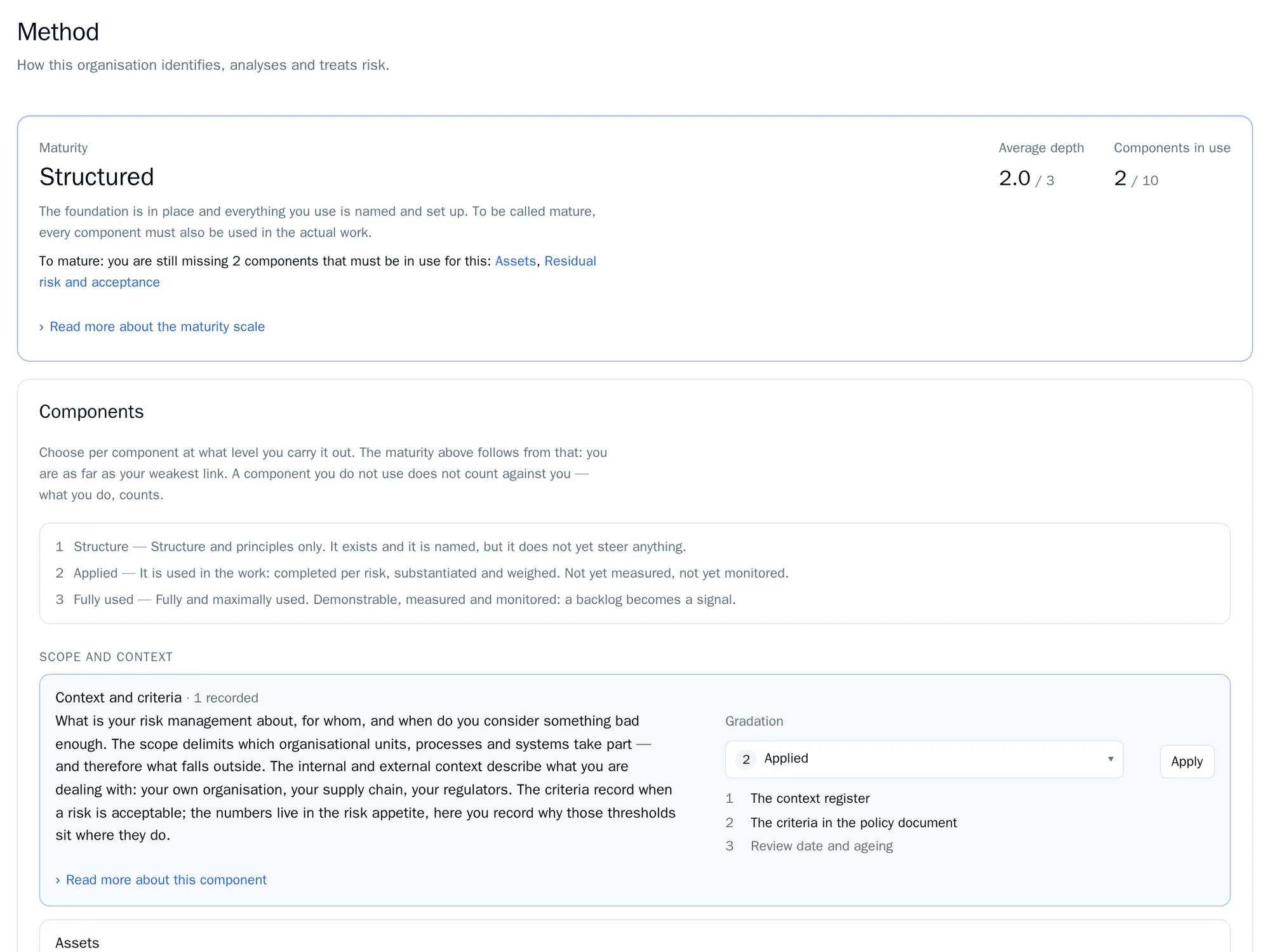
A new environment starts with only KPIs and reviews at Applied.
The components
Section titled “The components”| Phase | Component | What it adds |
|---|---|---|
| Scope and context | Context and criteria | A register for scope and context, and the risk criteria in your policy document. |
| Assets | A register of your assets that you can link to risks, and at the highest level their criticality. | |
| Identification | MAPGOOD checklist | The angle per risk (people, equipment, software, data, organisation, environment, services) and a recorded walkthrough per angle. |
| Threat actors | A register of who can cause a risk, with intent, capability and opportunity. | |
| Analysis | FMEA with detectability | The Analysis step with failure mode, effect and cause, then detectability and a priority number. |
| Bowtie | The Analysis step with causes and consequences, then barriers. | |
| Evaluation | Residual risk and acceptance | The Residual risk step: the score after treatment, and at the highest level an explicit acceptance. |
| Treatment | Control framework | Your own catalogue of controls, which measures refer to. |
| Statement of applicability | For each control, whether it applies, with a justification. Requires the control framework. | |
| Monitoring and review | KPIs and reviews | The next check date per risk, the watching of measurement points and the automatic sending of reports. |
Maturity
Section titled “Maturity”RiskCompass derives the maturity. You don’t choose it. The result is the lower of two judgements:
- The weakest link: the component you apply least deeply.
- The foundation: which components must be switched on. For Structured these are Context and criteria and KPIs and reviews. For Mature, Assets and Residual risk and acceptance are added. For Advanced, also the Control framework and the Statement of applicability.
If the foundation is not complete, the result is Starting. The page tells you which components you are missing for the next level.
The registers
Section titled “The registers”What you switch on appears in the menu under Registers. Context and criteria is under Administration. A risk manager fills in the registers. Other roles can read them.
Context and criteria
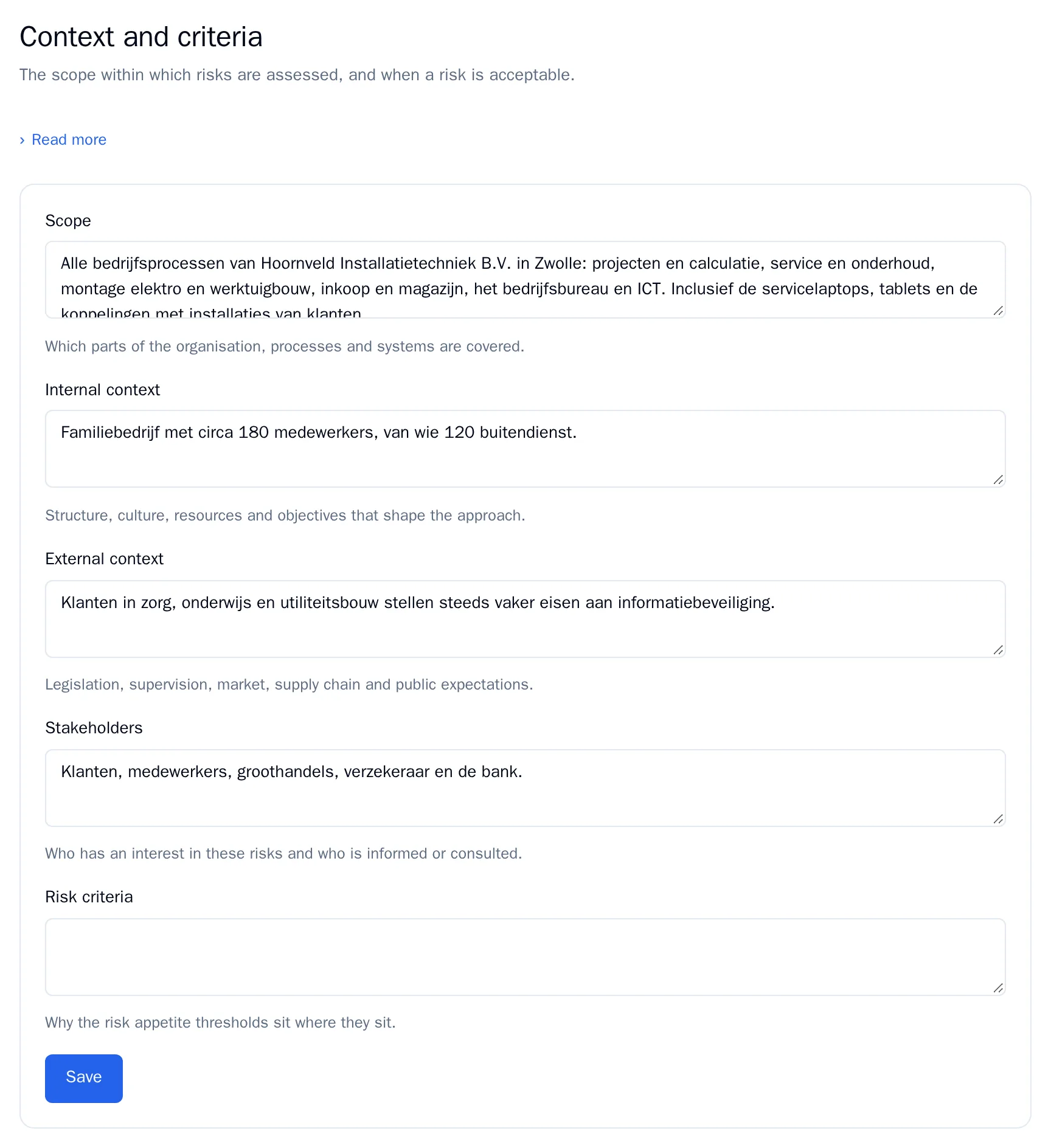
Section titled “Context and criteria”Five text fields: Scope, Internal context, External context, Stakeholders and Risk criteria. Click Save. These texts automatically appear in your risk management policy.
Assets
Section titled “Assets”Add an asset with Add asset: name, type, owner and a description. Change existing rows and click Save at the bottom to save everything at once. You cannot delete an asset that is linked to a risk.
Threat actors
Section titled “Threat actors”Add an actor with Add threat actor: name, type (internal, external, supply chain, nature or technical) and a score from 1 to 5 for each of intent, capability and opportunity. At the highest level RiskCompass calculates a threat level from them.
MAPGOOD checklist
Section titled “MAPGOOD checklist”Go through the seven angles. For each angle you record what you looked at and what that produced, with Record walkthrough. At the highest level RiskCompass warns you when an angle has not been reviewed for more than a year.
Control framework and Statement of applicability
Section titled “Control framework and Statement of applicability”RiskCompass does not include any standard texts. You import your own catalogue, for example ISO 27002, BIO, NEN 7510 or a framework of your own.
-
Click Create framework and fill in a name and the source.
-
Paste your controls under Paste your controls here, one per line, with the fields separated by a semicolon:
code;thema;titel(code, theme, title), and optionally a description as a fourth field. For example:A.5.1;Organisatorisch;Beleid voor informatiebeveiliging -
Click import. RiskCompass reports how many controls were added, updated and skipped. If you import a code again, it updates that control.
If the Statement of applicability is switched on, you choose Applicable, Not applicable or Undetermined for each control, with a justification. Click Save at the bottom of the table. The number of applicable controls appears in your information security policy.