Policy documents
RiskCompass compiles two policy documents largely by itself from what you have already filled in: your context, your risk appetite, your assessment framework, your policy per level and your users. You only write what only you know, such as the purpose of the policy and the statement from senior management.
You do this as organisation administrator, under Policies.
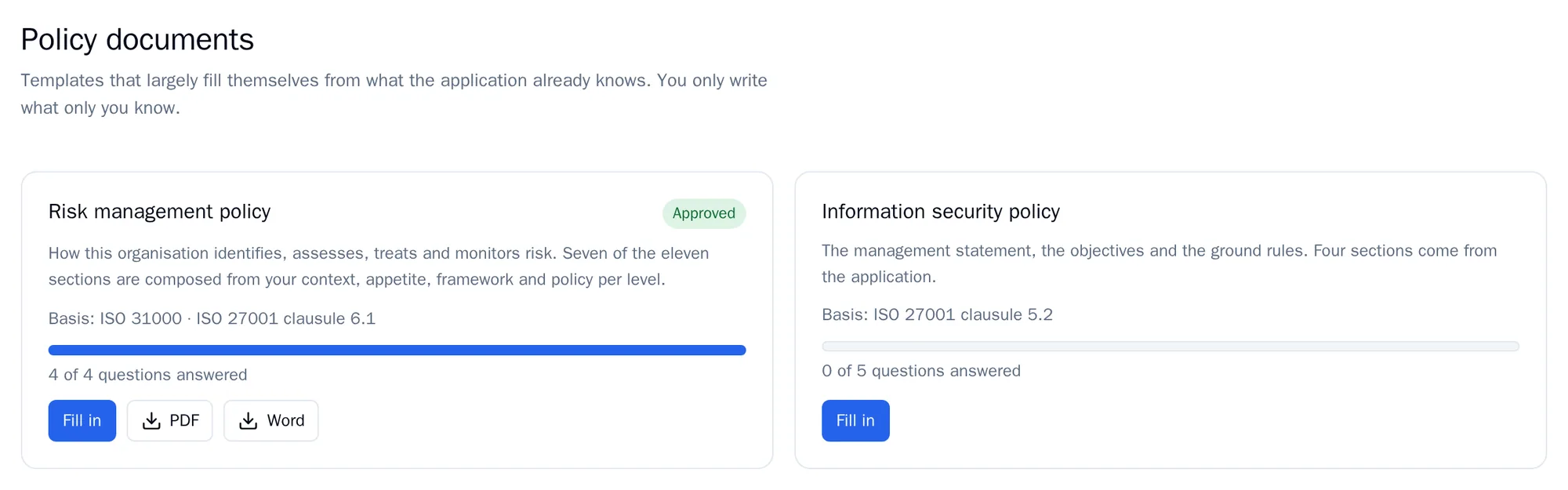
| Document | Basis | Sections |
|---|---|---|
| Risk management policy | ISO 31000 and ISO 27001 clause 6.1 | 11, of which 7 come from other screens |
| Information security policy | ISO 27001 clause 5.2 | 9, of which 4 come from other screens |
Filling in a document
Section titled “Filling in a document”- Go to Policies and click Fill in next to a document.
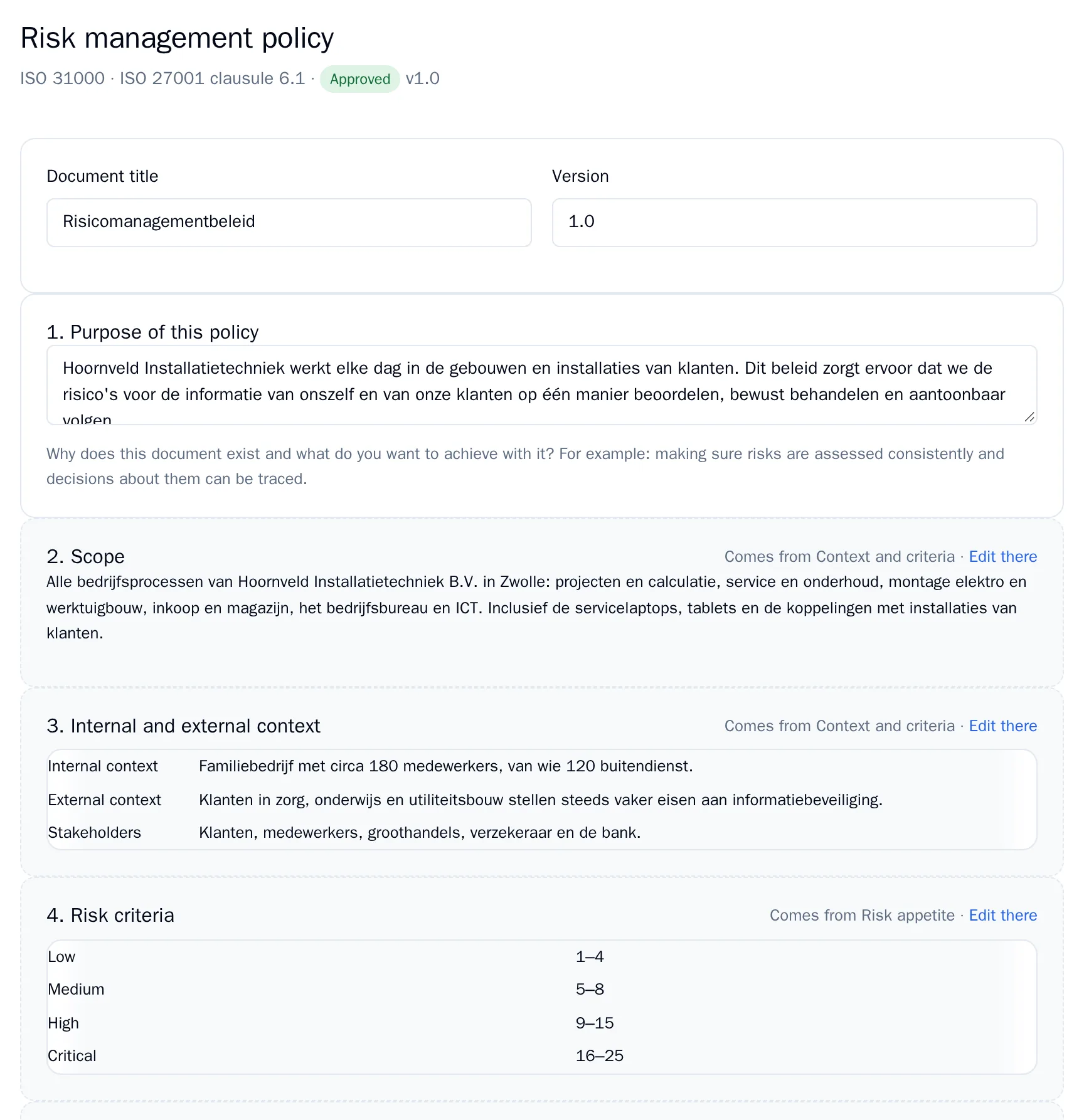
- Fill in the Document title and the Version.
- Go through the sections:
- RiskCompass fills in a section marked Comes from … · Edit there by itself. If the text is wrong, click Edit there and change it on the screen it comes from. The document follows that change straight away.
- You write a section with a text box yourself. The example in the box shows what belongs there. The label Required appears on sections that are still empty and must be filled in.
- Click Save.
On the overview you see for each document how many of the questions you fill in yourself have been answered.
Approving
Section titled “Approving”- First fill in all required sections. Until then you see Fill in the required sections first.
- Under Approve, check the Version. RiskCompass does not increase it by itself.
- Click Approve. After that the document shows who approved it and when.
If you change a section you wrote yourself after approval, the document returns to draft. You then approve it again. A change on a screen that a derived section comes from does not change the status: the text follows the source.
Downloading
Section titled “Downloading”Click PDF for the approved document, or Word to circulate it for reading and comments. The file name contains the title and version, and the top of the document shows the owner, the version, the status, who approved it and when, and the basis. You can also download a draft. The document comes out in the language you use RiskCompass in.
Every download is recorded in the audit log.