A tour of Awareness
Awareness runs for your organisation in its own environment, at its own web address. What you see after logging in depends on your role. An employee sees their own training and progress. An administrator sets up the environment and sees everyone’s figures.
The roles
Section titled “The roles”| Role | What this role does |
|---|---|
| Employee | Follows training, takes the baseline assessment and exercises, sees their own progress and risk score. |
| Coordinator | Same as an employee. |
| Manager | Same as an employee, plus managing campaigns, resetting their own team’s baseline assessment, and viewing and downloading the team’s reports. |
| ISO | For the information security officer: manages campaigns, the baseline assessment and auto-training, and views and downloads reports. Cannot manage employees or change the settings. |
| Administrator | Everything: employees, departments, campaigns, settings, auto-training and reports. |
An administrator chooses the role when inviting or importing someone, and can change it later. See Employees and departments.
The menu
Section titled “The menu”The menu is on the left.
| Role | Menu |
|---|---|
| Employee | Home, Learn, Practice, Progress, Rewards, Calendar, Profile |
| Coordinator and manager | Home, Learn, Practice, Progress, Rewards, Calendar, Team, Campaigns, Insights, Profile |
| Administrator | Home, People, Content, Campaigns, Insights, My learning, Practice, Settings, Auto-training, Profile |
| ISO | Home, Content, Campaigns, Insights, My learning, Practice, Auto-training, Profile |
A coordinator does see Team, Campaigns and Insights in the menu, but has no rights for them. Anyone who opens such a page is sent back to Home.
If a feature is switched off for your organisation, it disappears from the menu. An administrator switches features on and off under Settings, Modules. See Settings.
On a phone
Section titled “On a phone”On a narrow screen the menu sits at the bottom, with at most five items. The first four sections are there directly. You find the rest under More.
What an employee sees first
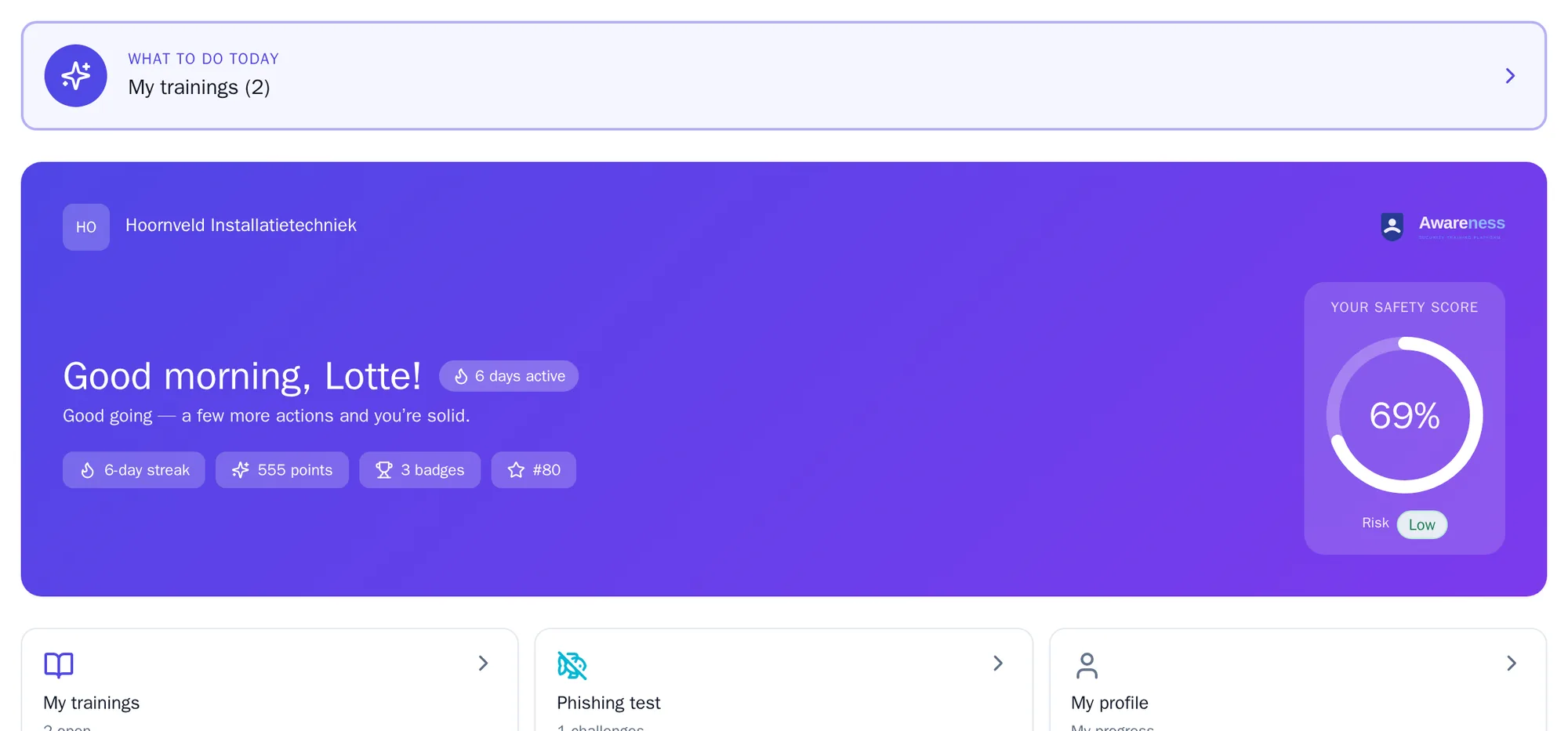
Section titled “What an employee sees first”Home shows an employee what there is to do today: first the baseline assessment, then a mandatory lesson, then their open training. Below that are their own safety score, points, badges and the next automatic training.
On Home, an administrator sees the state of the whole organisation: completion rate, running campaigns, the risk score per department and who is at increased risk.
Logging out
Section titled “Logging out”Click your name in the top right and choose Log out.