Logging in and second factor
Everyone in Awareness logs in with a password and a second factor. That way nobody can get into your account with only a stolen password.
Activating your account
Section titled “Activating your account”New employees receive an invitation by email. The link in it is valid for 72 hours.
- Open the link from the email. You arrive at Set up your account. Your email address and your role are already filled in.
- Enter your First name and Last name.
- Choose a Password and enter it again under Repeat password. The password must be at least 12 characters long, with an upper-case letter, a lower-case letter, a digit and a special character.
- Click Create account. You then set up your second factor.
If Awareness says the invitation link is invalid or has expired, the link is older than 72 hours or has already been used. Ask your administrator to send the invitation again. A resent invitation is valid for 7 days.
Logging in
Section titled “Logging in”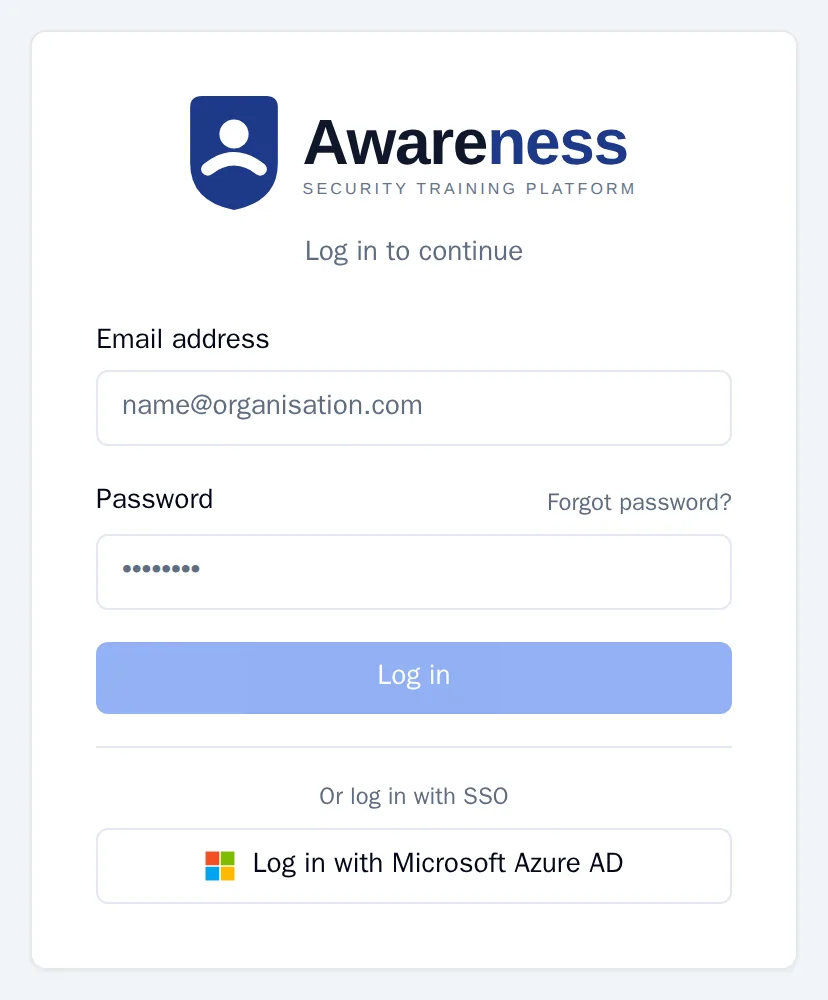
- Enter your Email address and Password. The Log in button becomes active as soon as both fields are filled in.
- Click Log in.
- Awareness asks for your second factor: a code from your authenticator app, your passkey or a recovery code. Enter it and click the button to confirm.
If your organisation uses Microsoft accounts, the form also shows Log in with Microsoft Azure AD. You then log in with your Microsoft work account.
Setting up your second factor
Section titled “Setting up your second factor”The first time you log in, you arrive at Set up MFA. Awareness only lets you continue once this has worked. You choose one of two methods. An authenticator app works on any device. A passkey uses your fingerprint, face or a security key.
With an authenticator app
Section titled “With an authenticator app”- Choose the Authenticator app tab.
- Scan the QR code with an app such as Google Authenticator or Authy. If scanning doesn’t work, open Enter manually and copy the code into your app.
- Enter the 6 digits from the app under Verification code and click the button to activate.
- You receive ten recovery codes. Click Download (.txt) and keep the file somewhere safe, for example in your password manager. You only see the codes once.
- Click I have saved the codes somewhere safe.
With a passkey
Section titled “With a passkey”- Choose the Passkey tab.
- Under Name for this passkey, enter a name you will recognise, for example “Work laptop”.
- Click the button to register the passkey and follow the prompt from your browser or operating system.
A passkey only works at the web address where you created it.
Forgotten password
Section titled “Forgotten password”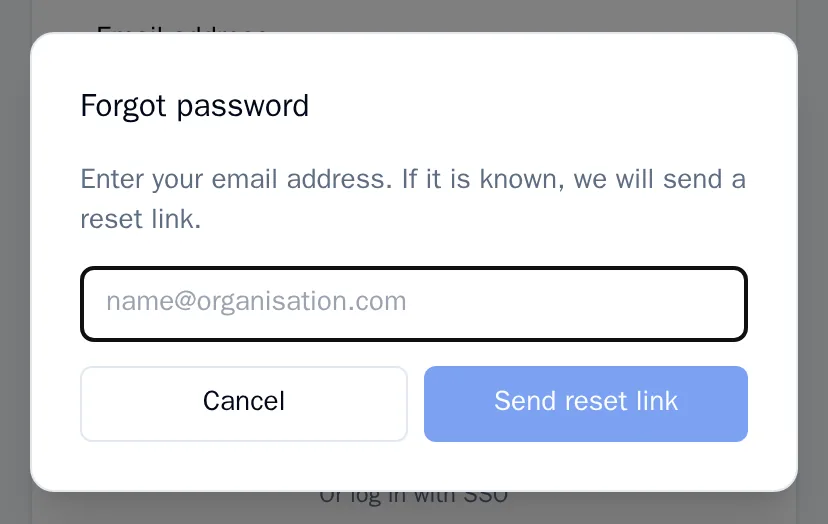
- On the login screen, click Forgot password?.
- Enter your email address and click Send reset link.
- Open the email and click the link. The link is valid for 30 minutes.
- On Set new password, choose a new password and click Save password.
Awareness always says the link is on its way, even if the address is not known. That way nobody can try out which addresses have an account. If no email arrives after a few minutes, check your junk mail folder. You can request a link at most five times per hour.
If it doesn’t work
Section titled “If it doesn’t work”| What you see | What is going on | What you do |
|---|---|---|
| A message that your login details are incorrect | The email address or password is wrong. | Check both and try again, or request a reset link. |
| A message that there have been too many failed login attempts | After a number of failed attempts (five by default), Awareness locks your account for 15 minutes. | Wait 15 minutes, or request a reset link: it lifts the lock. |
| A message that the code is invalid | The code from your app has expired or was copied incorrectly. | Wait for the next code in your app and enter that one. |
| A message that the recovery code is invalid or already used | Each recovery code works only once. | Use another code from your file. |
| A message that password login is disabled and you should use SSO | Your organisation only allows logging in with Microsoft. | Click Log in with Microsoft Azure AD. |
| The reset link is invalid or expired. Request a new link. | The link is older than 30 minutes or has already been used. | Request a new link. |
If you have lost both your phone and your recovery codes, ask your administrator for help.