Users and audit log
You manage users and the audit log as organisation administrator, under Administration.
Inviting a colleague
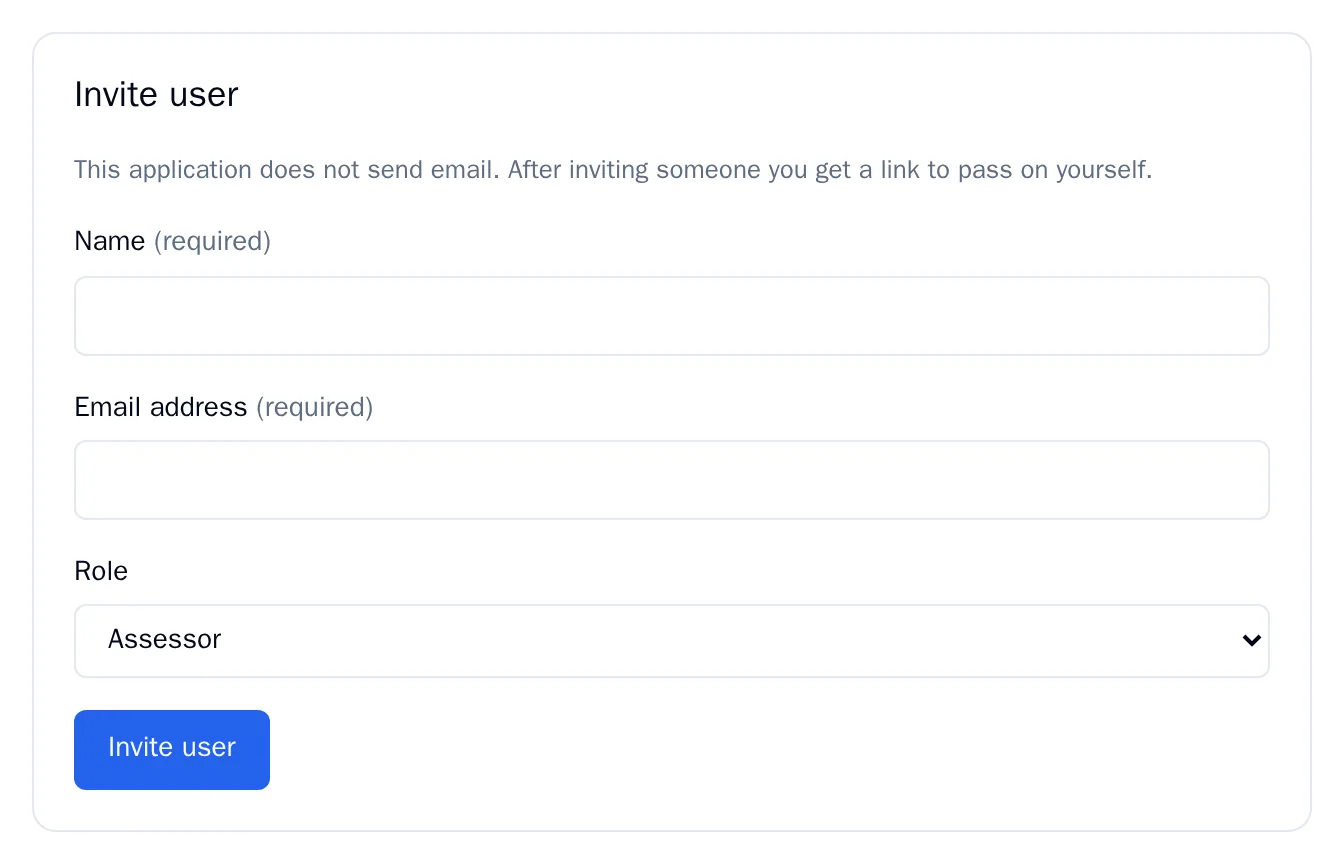
Section titled “Inviting a colleague”RiskCompass does not send any email. After inviting someone you get a link that you pass on yourself.
- Go to Users and scroll to Invite user.
- Fill in the Name and the Email address.
- Choose the Role. The default is Assessor. You can read what each role can do in the Tour.
- Click Invite user.
- Copy the activation link from the green block and pass it on personally. The link works once and is valid for 7 days.
The link is shown on screen only once. If you refresh the page before you have copied it, create a new one with New activation link.
If inviting fails and you see an error message, check in the list whether the email address already has an account.
The user list
Section titled “The user list”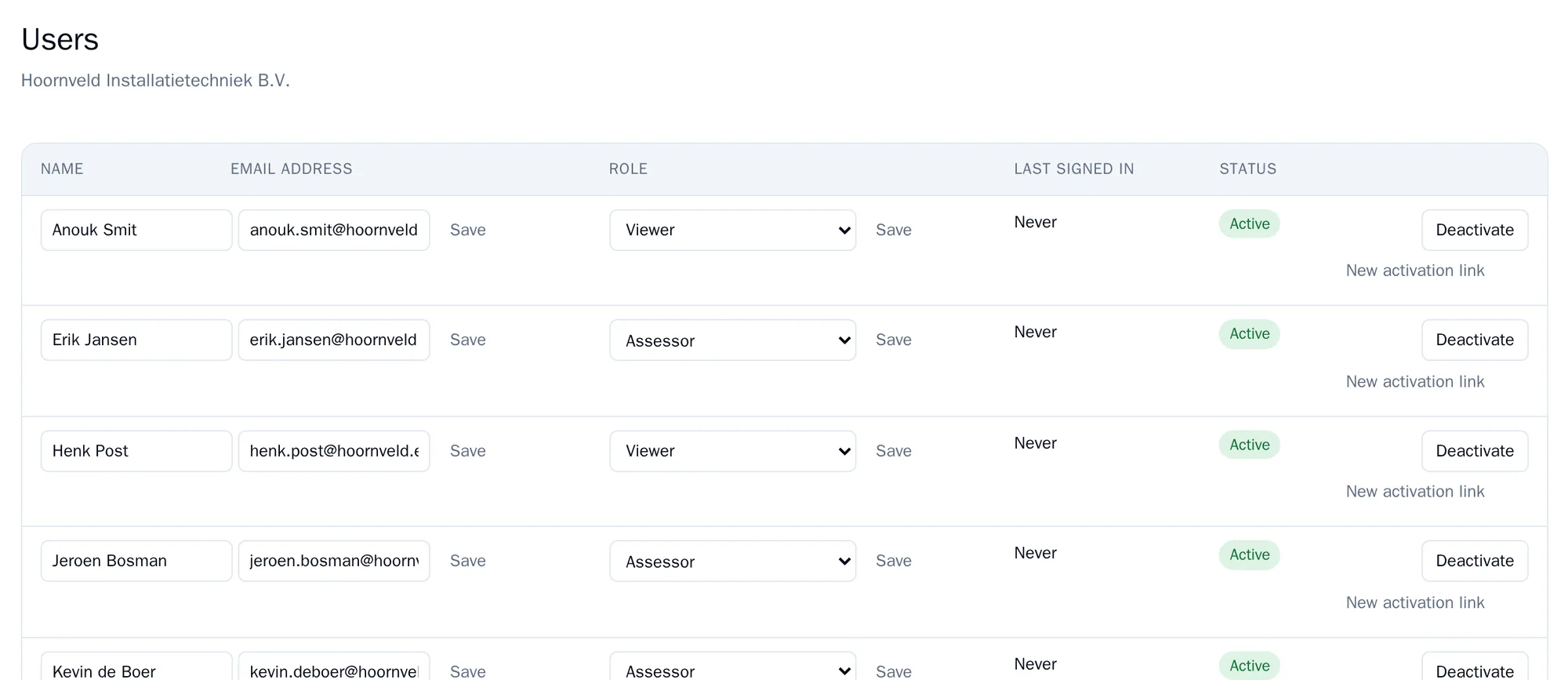
For each user you see the name, the email address, the role, when they last signed in and whether the account is active. An open invitation has the label Invited, with the date until which the link is valid.
- Changing a name or email address: edit the field and click Save in that row.
- Changing a role: choose the new role and click Save. It takes effect immediately. You cannot give someone a higher role than your own.
- Forgotten password: click New activation link and pass the link on. All sessions of that user are ended. The old password keeps working until the new link is used.
You cannot change your own account here. For that, use My account.
Someone leaves
Section titled “Someone leaves”Click Deactivate and confirm. Logging in then no longer works and running sessions stop immediately. That person’s assessments, treatment plans and audit entries stay unchanged. Use Activate to switch the account back on.
A deactivated user who uses a new activation link is active again afterwards. So only give out such a link if that is the intention.
You cannot delete users. That way it always stays visible who did what.
The audit log
Section titled “The audit log”Go to Audit log. It lists every change in your organisation: who, when, what, and from which value to which value. Exports, sends, logging in and out, and refused attempts to unlock the risk appetite are recorded too.
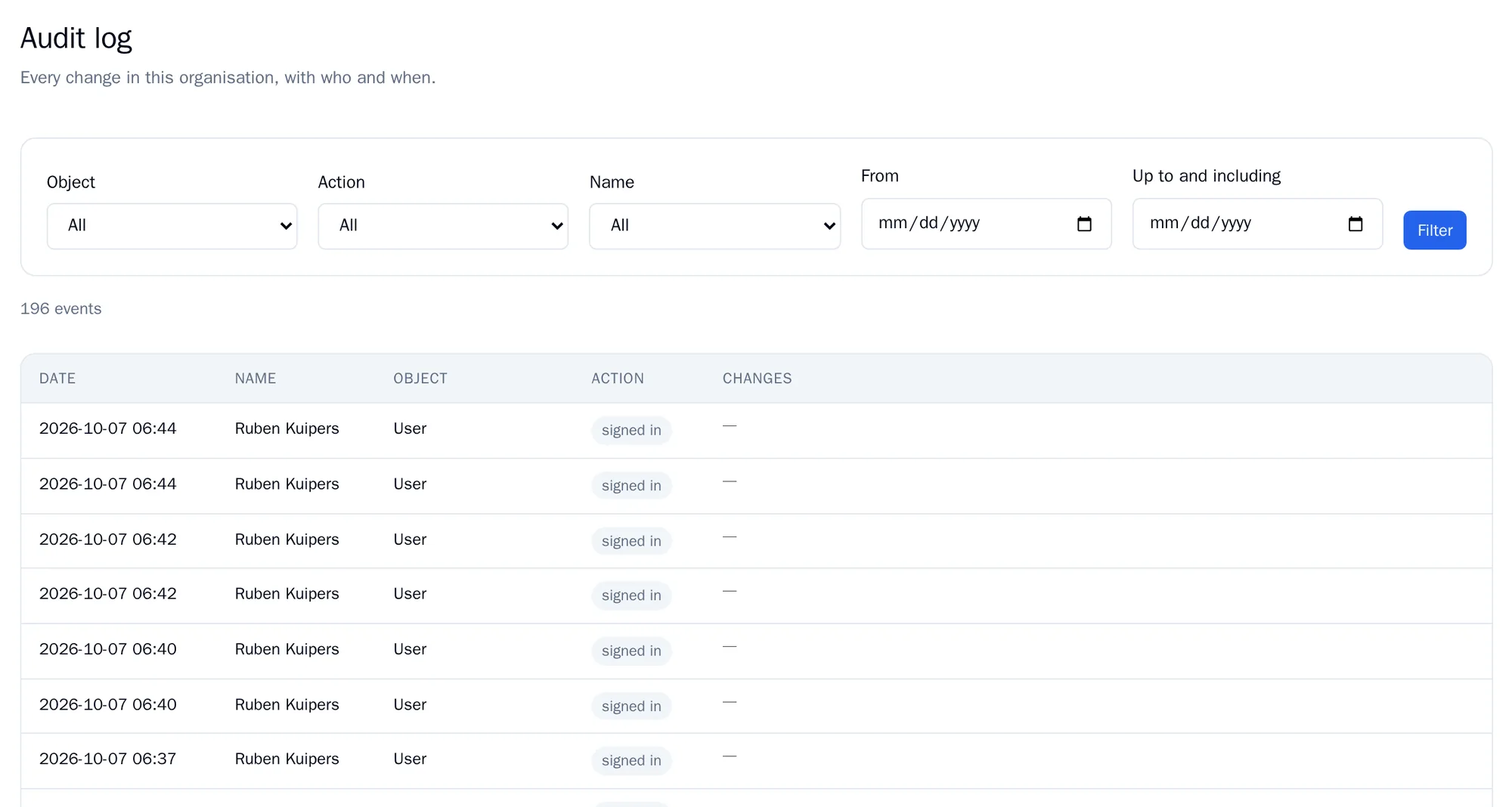
Filter on Object, Action, Name and a period with From and Up to and including, and click Filter. Use Clear to remove the filters. The log shows 100 entries per page.
The audit log is read-only. There is no button to change or delete entries.