Assessment framework
The assessment framework is the yardstick everyone in your organisation uses to assess risks. It has four parts: the impact criteria, the likelihood scale, the risk appetite and the policy per level. That way everyone weighs a risk in the same way.
You set up the framework as organisation administrator, under Assessment framework. At the top there are five tabs: Assessment framework, Impact criteria, Likelihood scale, Risk appetite and Policy per level.
Versions: a framework in use is fixed
Section titled “Versions: a framework in use is fixed”Each assessment is made with one version of the framework and keeps that version. As soon as an assessment has been made with a version, that version is fixed. You then see: Assessments have been made with this framework, so it is fixed. Editing is only possible in a new version. This way an earlier assessment never changes without anyone noticing.
To change a framework that is already in use:
- Click Create new version from v…. RiskCompass copies the framework to a new draft version.
- Adjust the impact criteria, likelihood scale or policy in that new version.
- Go to the Assessment framework tab and click Publish next to the new version. You see what changes: new assessments use this version from now on, the previous one goes to the archive, and existing assessments keep their own version.
There is always one active framework. A new environment starts with an active default framework that has not been used yet. You can change it freely until the first assessment.
Impact criteria
Section titled “Impact criteria”For each category you describe what each of the five levels means: 1 Not noticeable, 2 Minor, 3 Moderate, 4 Major and 5 Disastrous. The default framework has six categories: financial impact, own quantitative assessment, regulatory, reputation, customer and personnel.
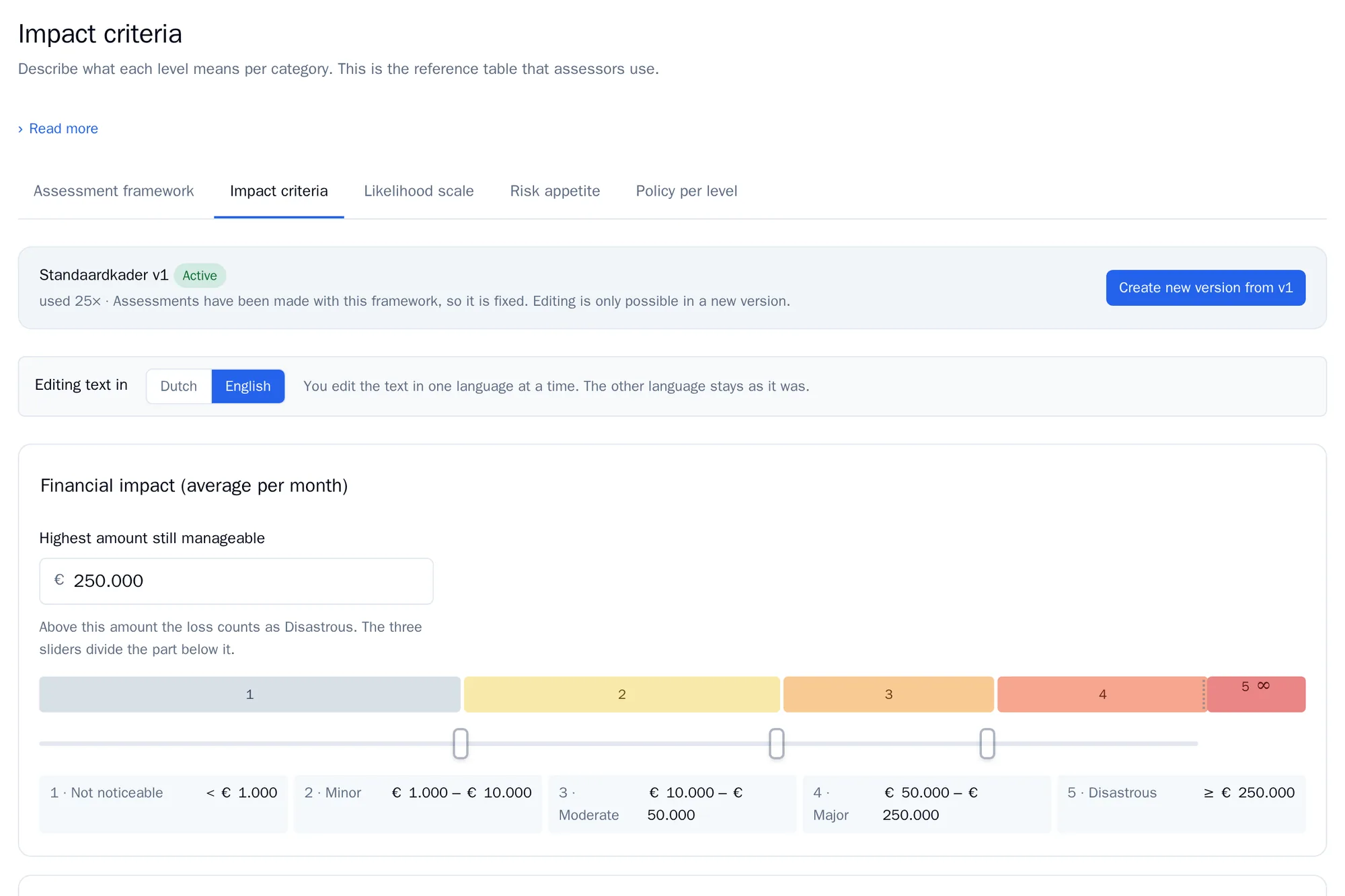
- Under Editing text in, choose whether you edit the Dutch or the English text. The other language stays as it was.
- For financial impact, fill in the Highest amount still manageable. Above that amount the damage is disastrous. With the three sliders you divide the amounts below it over the other levels.
- You add a new category at the bottom, with a name and a scale type: a description per level, or amounts.
- Click Save.
Likelihood scale
Section titled “Likelihood scale”The likelihood scale is a series of statements about how often something has happened, from Only theoretically possible to Occurred more than twice within the company in the past 3 months. Whoever assesses a risk chooses the highest statement that is true. The statements below it then apply as well.
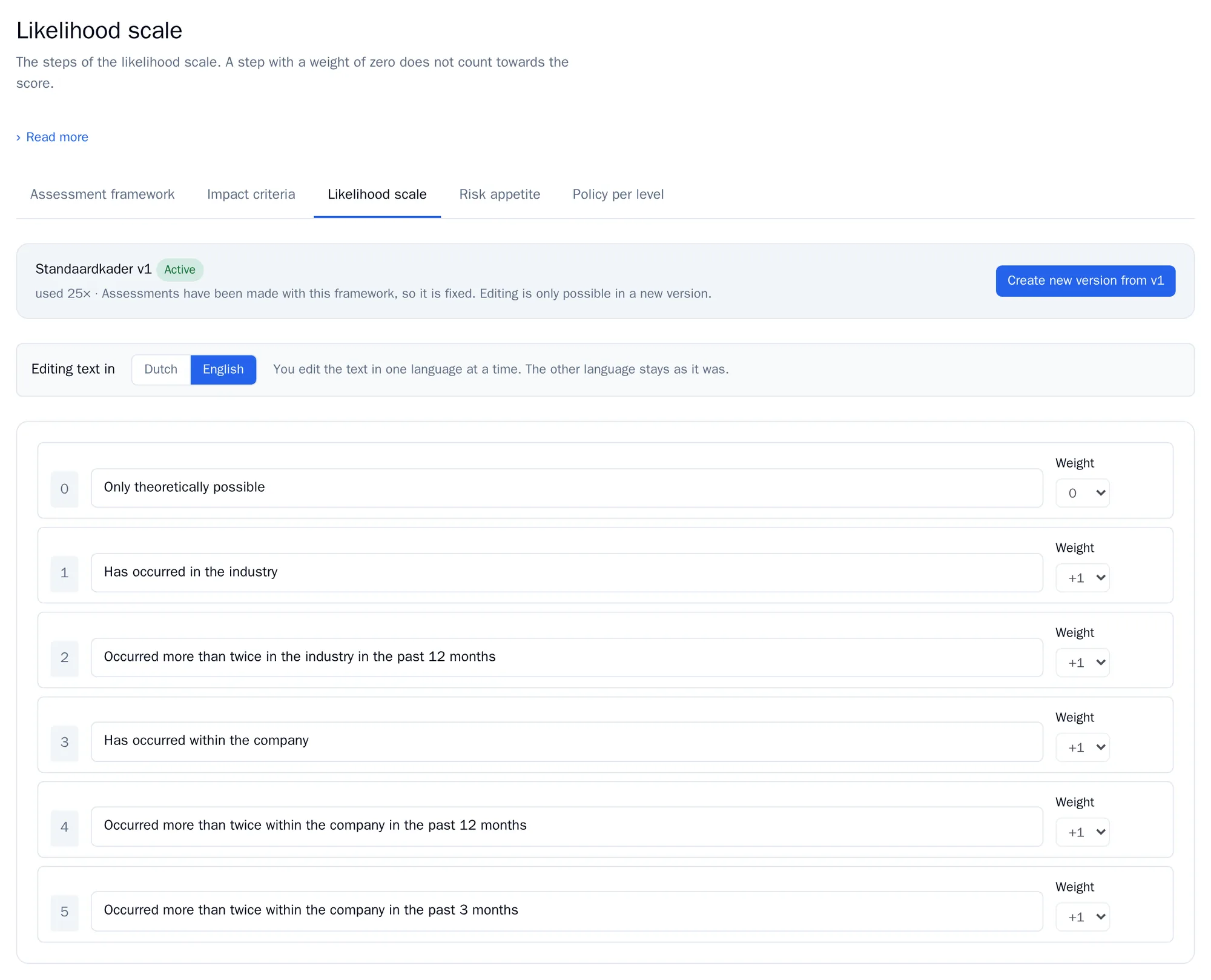
You can adjust the text of each step. The default scale has six steps and gives a likelihood score from 0 to 5. Only add steps if you know what that does to the scores: the likelihood score must not go above 5.
Risk appetite
Section titled “Risk appetite”The risk appetite determines which risk score belongs to which level. By default:
| Level | Risk score |
|---|---|
| Low | 1 to 4 |
| Medium | 5 to 8 |
| High | 9 to 15 |
| Critical | 16 to 25 |
This is a decision by senior management. That is why it is locked.
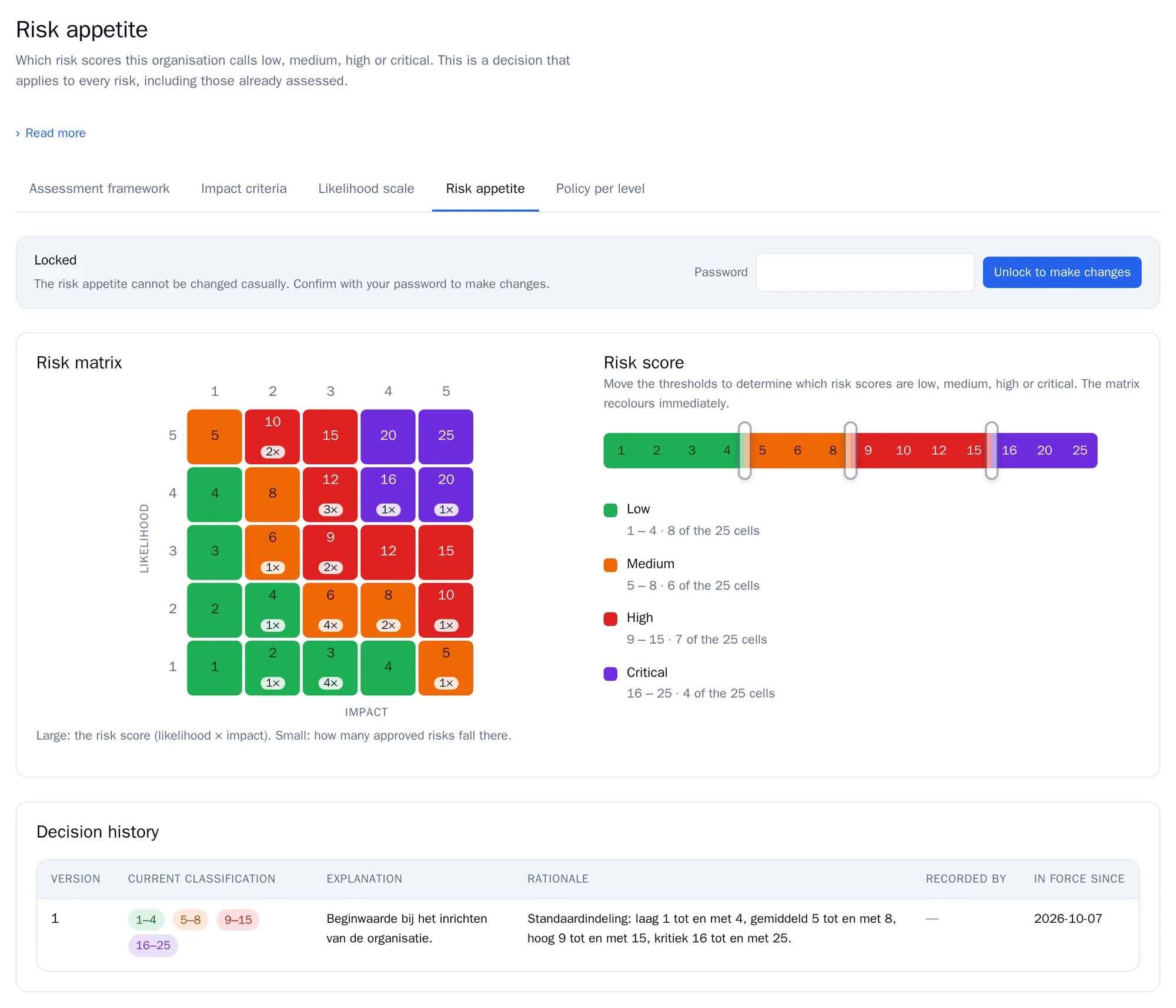
- Open Risk appetite. You see Locked.
- Enter your own password and click Unlock to make changes. You have 15 minutes.
- Move the thresholds. The matrix changes colour with them.
- Click Prepare change. RiskCompass shows how many risks change level, for example “3× Medium → High”.
- Fill in an Explanation (what changes) and a Rationale (why, and who gave the instruction). Both need at least 20 characters.
- Click Record change. Or click Discard proposal if you decide not to change anything after all.
Under Decision history you find every version, with the classification, the explanation, the rationale, who approved it and since when it applies. The new classification applies to all risks immediately: the scores stay the same, but the levels, and therefore the periods, can change.
Policy per level
Section titled “Policy per level”For each risk level you record how your organisation deals with a risk. RiskCompass monitors this and creates an alert when a risk deviates from it.
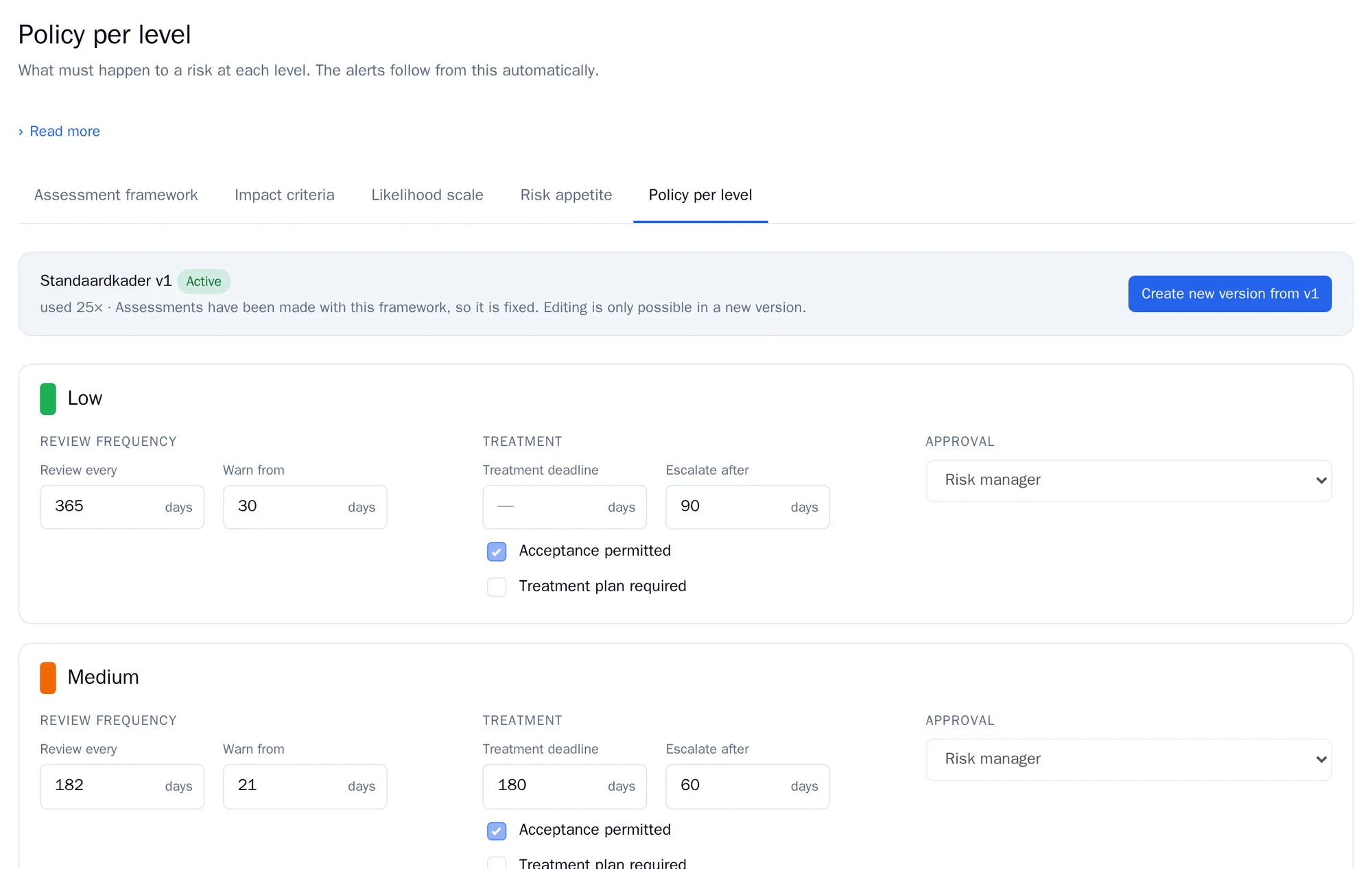
| Field | What it means | Low | Medium | High | Critical |
|---|---|---|---|---|---|
| Review every | After how many days an approved risk must be reassessed. | 365 | 182 | 91 | 30 |
| Warn from | How many days in advance you get an alert that the reassessment is coming up. | 30 | 21 | 14 | 7 |
| Treatment deadline | Within how many days after approval the measures must be finished. Empty means no deadline. | none | 180 | 90 | 30 |
| Escalate after | After how many days overdue an alert becomes critical. | 90 | 60 | 30 | 14 |
| Acceptance permitted | Whether you may accept a risk at this level without treating it. | yes | yes | no | no |
| Treatment plan required | Whether a risk at this level must have a treatment plan. | no | no | yes | yes |
These are the default values. Under Approved by you record which role should approve a risk at this level. That choice appears in your risk management policy. In RiskCompass, a risk manager or organisation administrator can always approve.