Automatic training
With automatic training, Awareness assigns training itself every cycle. For each employee it looks at the gap between the current level and the target level for each topic. The topic with the largest gap comes first, each time one level above where the person stands now. Knowledge that has not been tested for a long time drops a level after a while and then comes back.
You set this up as an administrator or ISO, under Auto-training.
Switching it on
Section titled “Switching it on”- Go to Auto-training and open the Configuration tab.
- Switch on Enable auto-training.
- Under Training interval, choose how often a cycle runs: monthly on a fixed day (day 1 to 28), or every so many days.
- Under Trainings per cycle, enter how many trainings someone receives per cycle (1 to 10).
- Under Training duration (days), enter how many days someone has to finish a training, and under the grace period how many extra days come on top of that.
- Under Reminders (days before), choose when Awareness sends a reminder. By default that is 7, 3 and 1 day before the deadline. Use Add day to add one.
- Under Apply to departments, choose whether it applies to All departments or to Selected departments.
- Click Save.
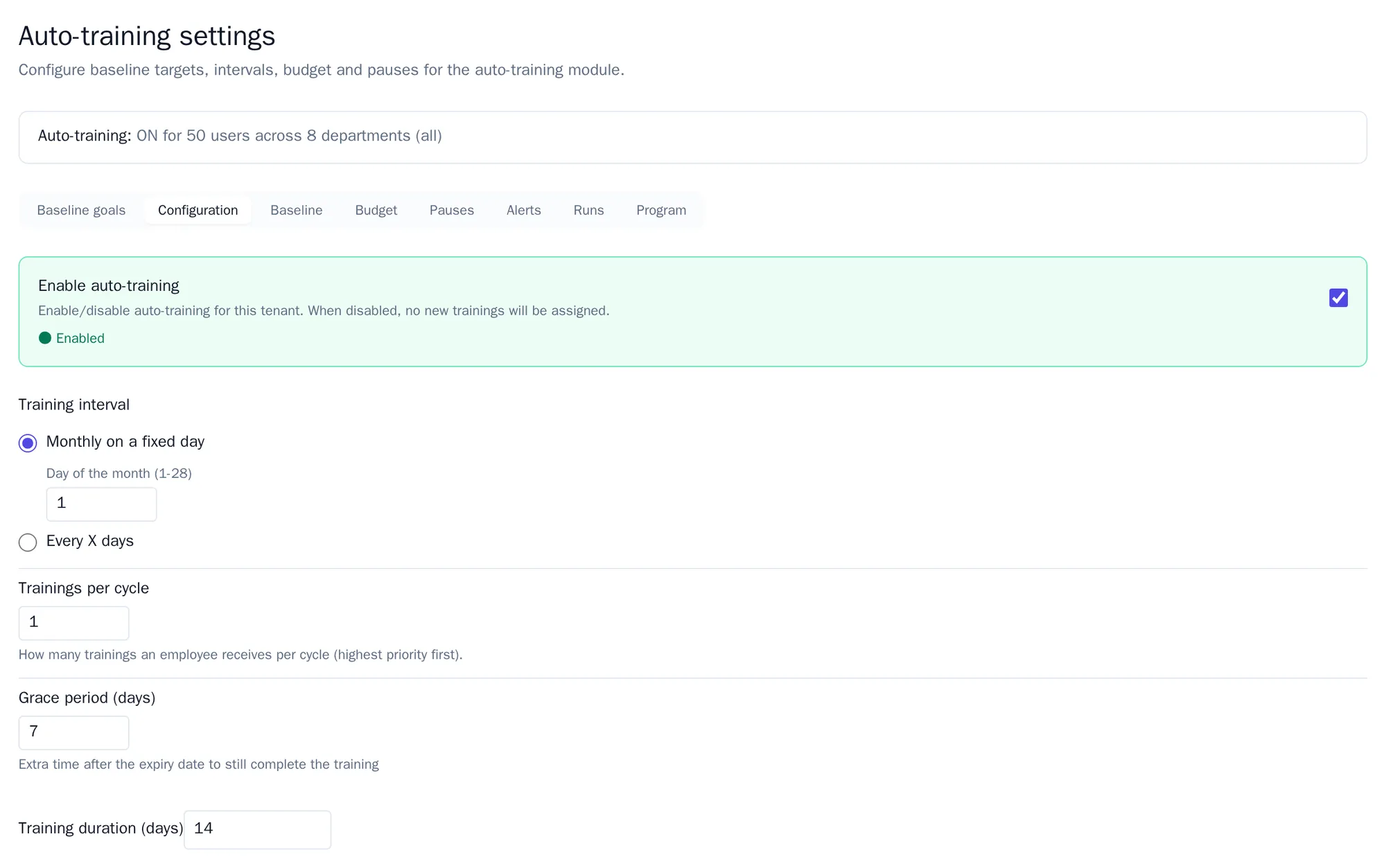
At the top of the page, one line shows the current state: whether auto-training is on, for how many employees and in which departments.
The first cycle starts at the moment you set. If you don’t want to wait, click Run now and confirm at Start training cycle now?. Awareness then assigns training straight away to everyone in scope.
If you switch off Enable auto-training, nobody receives new training. Training that has already been assigned stays in place.
Other settings
Section titled “Other settings”Under Configuration you also find:
- Retry policy: whether someone who fails gets another attempt, and Lesson mandatory on fail: someone who fails must do the lesson first. This is on by default.
- Show advanced settings: among other things the pass mark (80 percent by default), stretch mode (someone at target level gets one level extra, on by default) and after how many days knowledge decays.
The other tabs:
| Tab | What you do there |
|---|---|
| Baseline goals | The target level per topic, for the whole organisation and per department. |
| Baseline | Whether new employees must take the baseline assessment, the deadline and the reminders. This is also where you reset a baseline assessment. See The baseline assessment. |
| Budget | How many hours per month someone may spend on auto-training (4 by default). |
| Pauses | Temporarily excluding an employee, for example during leave. Only the ISO can do this, unless they give the administrator that right. |
| Alerts | Notifications when something isn’t working, such as a baseline assessment past its deadline or a topic with no training left. |
| Runs | When the cycles ran and whether they succeeded. |
| Program | The progress of the whole programme, see below. |
Tracking progress
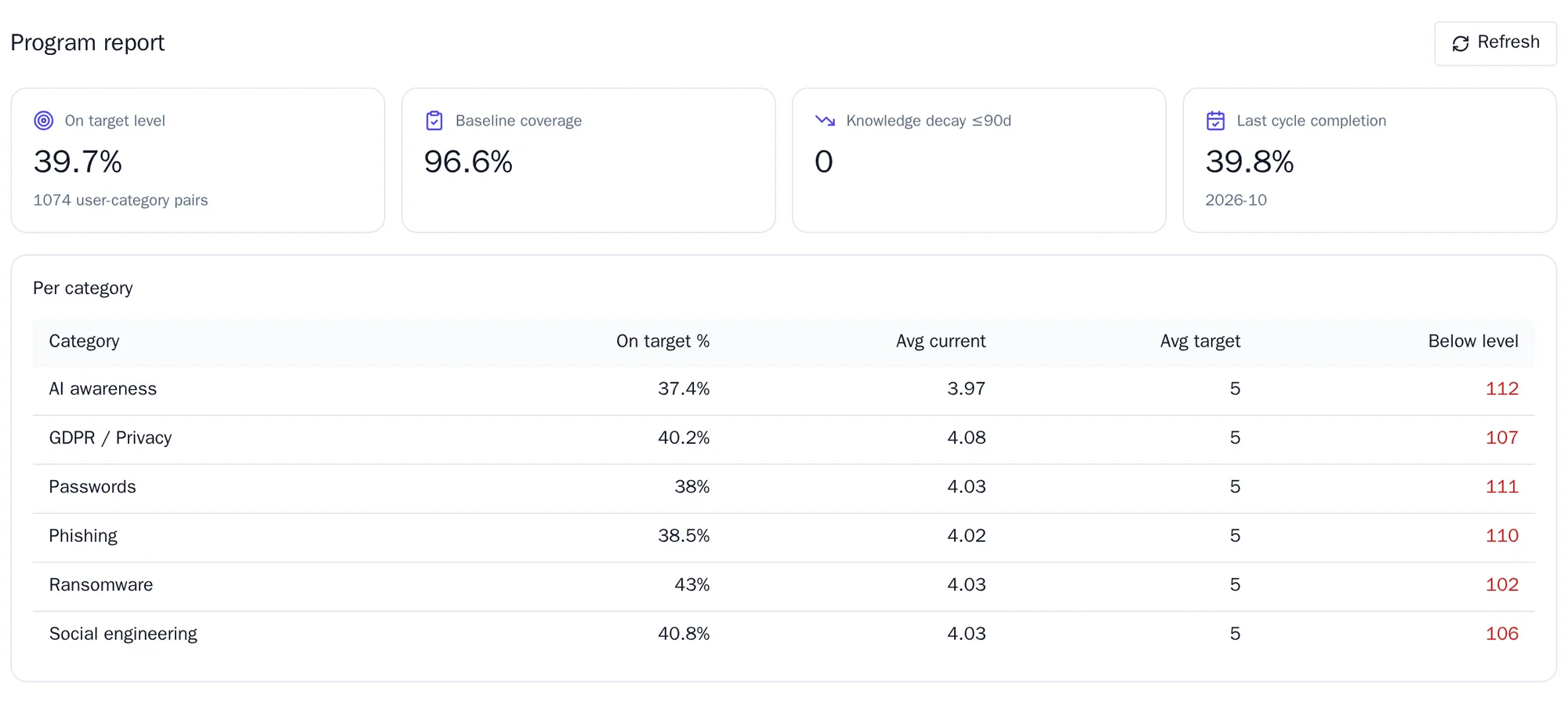
Section titled “Tracking progress”Open the Program tab. At the top are four figures: what percentage is at target level, what percentage has taken the baseline assessment, how much knowledge has recently decayed and how far along the last cycle is. Below that you see the state per topic and per department, the cycles of the past months and how large the backlogs are.
What an employee sees
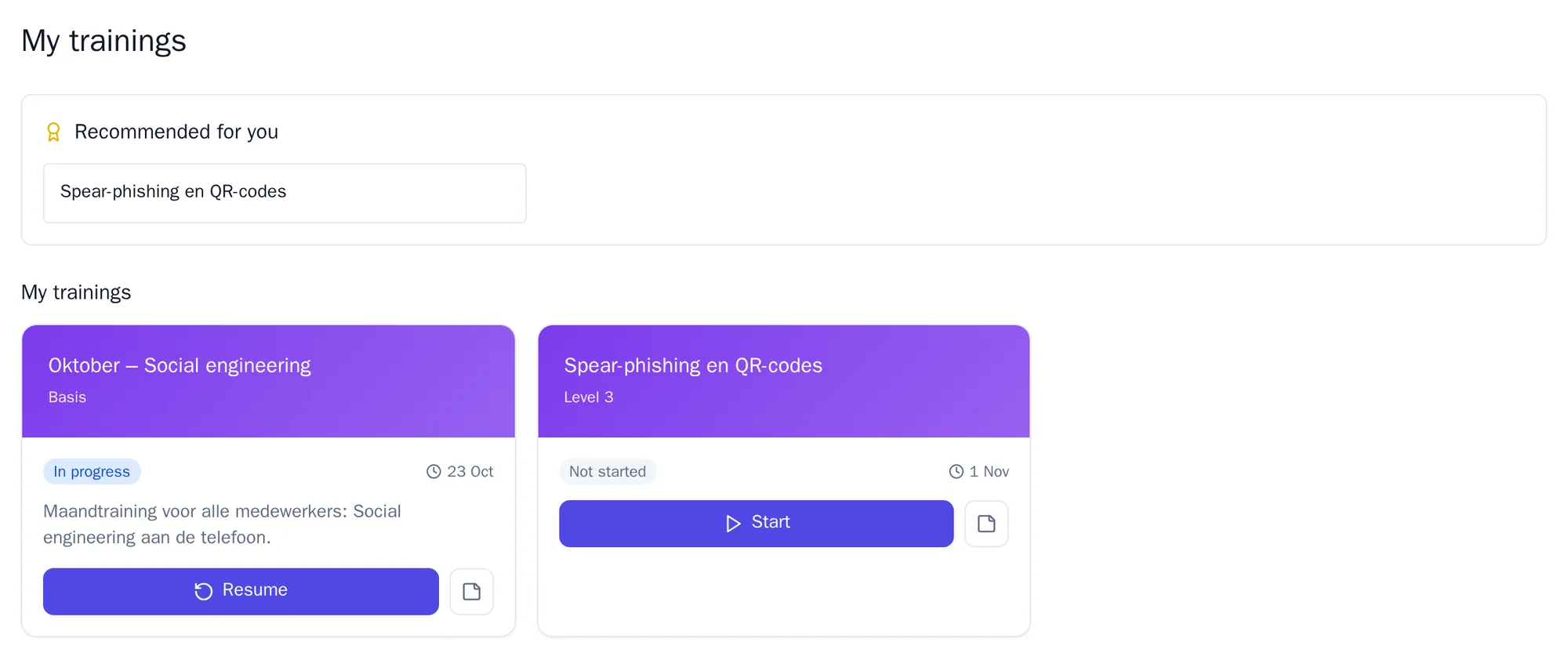
Section titled “What an employee sees”The employee opens My trainings via Learn or via Home. It lists the trainings waiting for the employee, with the deadline and the status.
How a training works is explained in Learning and practice.